Reconcile R&D payroll tax offset payments against Neo.Tax records
On the first Monday of each month, WebRun opens Neo.Tax to retrieve the approved payroll-tax-offset credit amounts for each client, opens QuickBooks to read the corresponding credits applied, logs both figures side by side in Google Sheets, flags any discrepancy, and posts a reconciliation summary to Slack for the accounting team to action.
- No credit card
- Under $0.01 per run
- Cancel anytime
What does WebRun do on every run?
The exact actions WebRun takes, in order - in plain language, so you can adjust anything.
-
WebRun signs in and gets to work
Opens
app.neo.taxin a real browser with your saved login - no setup, no API keys. -
1
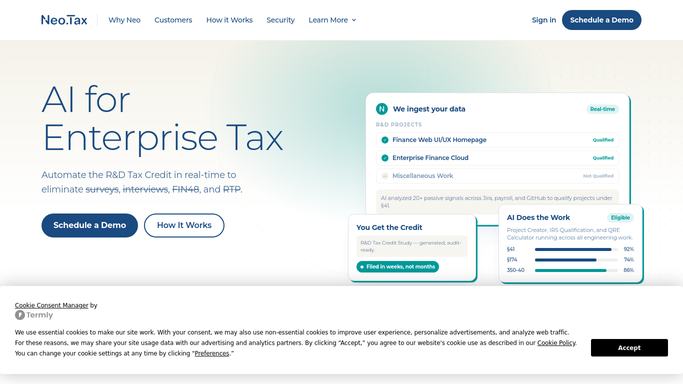
Neo.Tax - retrieve approved payroll offset amounts
neo.tax How to Automate Neo.Tax

WebRun opens Neo.Tax to retrieve approved payroll offset amounts. - Open Neo.Tax and navigate to completed engagements with approved payroll-tax-offset elections
- Capture the approved offset amount, the relevant quarter, and the client name for each
- Note any offset elections that have been approved but not yet matched to a QuickBooks record
Done when All approved payroll-tax-offset amounts are captured for the current reconciliation period.
-
2
QuickBooks - read credits applied in payroll
- Open QuickBooks and navigate to the payroll tax liability section for each client
- Read the R&D credit amount applied against payroll tax for the matching quarter
- Note the applied amount and the date of application
Done when The QuickBooks credit-applied figures are captured for every client in scope.
-
3
Google Sheets - log and flag reconciliation mismatches
google.com How to Automate Google Sheets
WebRun opens Google Sheets to log and flag reconciliation mismatches. - Open the payroll-offset reconciliation Google Sheet
- Log the Neo.Tax approved amount and the QuickBooks applied amount side by side for each client
- Flag any row where the two figures differ by more than the configured tolerance
Done when All clients are reconciled in the sheet with discrepancies flagged.
-
4
Slack - post monthly reconciliation digest
slack.com How to Automate Slack
WebRun opens Slack to post monthly reconciliation digest. - Post the monthly reconciliation digest to the accounting Slack channel
- List matched clients and the count of discrepancies found
- Include the total variance amount and a link to the full reconciliation sheet
Done when The accounting team has this month's reconciliation summary and discrepancy count in Slack.


How do I reconcile R&D payroll tax offset amounts between Neo.Tax and QuickBooks?
On the first Monday of each month, WebRun retrieves approved payroll-tax-offset amounts from Neo.Tax, reads the corresponding credits applied in QuickBooks for each client, logs both figures side by side in Google Sheets, flags any mismatch, and posts a reconciliation summary to Slack for the accounting team to review and correct.
- Payroll offset discrepancies are caught monthly before they become filing problems
- Accounting teams see matched vs. mismatched credits in one Slack message
- No manual spreadsheet comparison needed between Neo.Tax and QuickBooks
Built for R&D tax credit firms · CPA practices · accounting teams · fractional CFO services
How is each run configured?
Secure by default
Connect once, stays signed in
WebRun signs in once and keeps each session in a persistent environment, so every run picks up right where it left off.
Every action is checked against this policy before it runs.
Questions, answered
Does it make any changes in QuickBooks or Neo.Tax?
No. WebRun only reads figures from both systems and logs them for comparison. Any corrections to QuickBooks or Neo.Tax records are made by your team after reviewing the reconciliation sheet.
What tolerance is used before a discrepancy is flagged?
The default tolerance is zero: any difference between the Neo.Tax approved amount and the QuickBooks applied amount is flagged. You can adjust this threshold in the workflow settings.
What if a client has multiple quarters in scope?
WebRun reconciles each quarter separately, logging a row per client per quarter so you can see exactly which period contains a discrepancy.
Related templates
Put this on autopilot.
Turn it on in minutes - or have our team set it up for you.