Log qualifying R&D expense data from client emails into Neo.Tax
When a client emails a payroll breakdown or expense summary, WebRun reads the email in Gmail, extracts the qualifying figures, matches the data to the correct Neo.Tax engagement, logs everything to Google Sheets for team verification, and posts a Slack alert so nothing sits in an inbox unprocessed.
- No credit card
- Under $0.01 per run
- Cancel anytime
What does WebRun do on every run?
The exact actions WebRun takes, in order - in plain language, so you can adjust anything.
-
WebRun signs in and gets to work
Opens
mail.google.comin a real browser with your saved login - no setup, no API keys. -
1
Gmail - read incoming expense emails
gmail.com How to Automate Gmail

WebRun opens Gmail to read incoming expense emails. - Monitor the designated inbox label for new client expense emails
- Open each email and extract payroll figures, expense categories, employee names, and the relevant tax year
- Flag any email where the data format is unclear or figures are missing
Done when All qualifying expense figures have been extracted from the inbound emails.
-
2
Neo.Tax - match data to open engagement
neo.tax How to Automate Neo.Tax
WebRun opens Neo.Tax to match data to open engagement. - Open Neo.Tax and locate the client engagement that matches the email sender
- Confirm the tax year and engagement status are active
- Note the engagement ID to link the extracted data correctly
Done when The correct Neo.Tax engagement has been identified and confirmed active.
-
3
Google Sheets - log extracted figures for review
google.com How to Automate Google Sheets
WebRun opens Google Sheets to log extracted figures for review. - Open the QRE data-entry staging Google Sheet
- Log each extracted figure with the client name, engagement ID, expense category, amount, and email date
- Flag rows where figures need manager verification before entry into Neo.Tax
Done when All extracted data is logged in the staging sheet with verification flags where needed.
-
4
Slack - alert team to new data ready for verification
slack.com How to Automate Slack
WebRun opens Slack to alert team to new data ready for verification. - Post a Slack alert listing the clients whose expense data arrived today and is ready for review
- Include the number of rows staged and any items flagged for manual verification
Done when The team has a Slack notification with today's staged expense data ready for review.

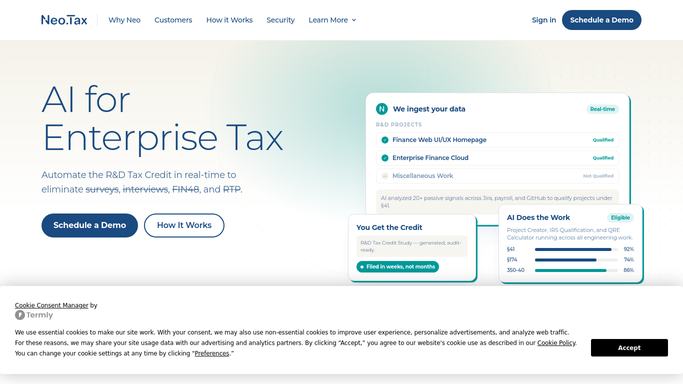


How do I automatically log R&D expense data from client emails into Neo.Tax?
WebRun monitors your Gmail inbox for client payroll and expense emails, extracts the qualifying figures, matches each dataset to the right Neo.Tax engagement, and stages everything in Google Sheets for your team to verify. A Slack alert fires for every batch so no inbound data sits unprocessed.
- Inbound client data is staged for review within minutes of arrival, not hours
- No figures enter Neo.Tax without team verification
- Every data item is matched to the correct engagement and logged with full audit trail
Built for R&D tax credit firms · CPA practices · tax advisory teams · accounting operations
How is each run configured?
Secure by default
Connect once, stays signed in
WebRun signs in once and keeps each session in a persistent environment, so every run picks up right where it left off.
Every action is checked against this policy before it runs.
Questions, answered
Does it enter data directly into Neo.Tax without review?
No. WebRun stages all extracted figures in Google Sheets and flags items for verification. A team member reviews and approves the data before it is entered into Neo.Tax.
What expense types can it extract from emails?
It extracts payroll breakdowns, employee lists with R&D time allocations, contractor expense summaries, and supply cost figures from structured client emails.
What happens if an email has ambiguous or missing figures?
WebRun flags the row in the staging sheet and includes the item in the Slack alert so the team can request clarification from the client directly.
Related templates
Put this on autopilot.
Turn it on in minutes - or have our team set it up for you.