Fill cancelled courts from your waitlist automatically
Every morning, WebRun opens CourtReserve, finds courts with a cancellation that now have a waitlist entry, drafts an availability offer for the next eligible member on each waitlist, queues every draft in Gmail for staff review, and posts an open-court summary to Slack.
- No credit card
- Under $0.01 per run
- Cancel anytime
What does WebRun do on every run?
The exact actions WebRun takes, in order - in plain language, so you can adjust anything.
-
WebRun signs in and gets to work
Opens
app.courtreserve.comin a real browser with your saved login - no setup, no API keys. -
1
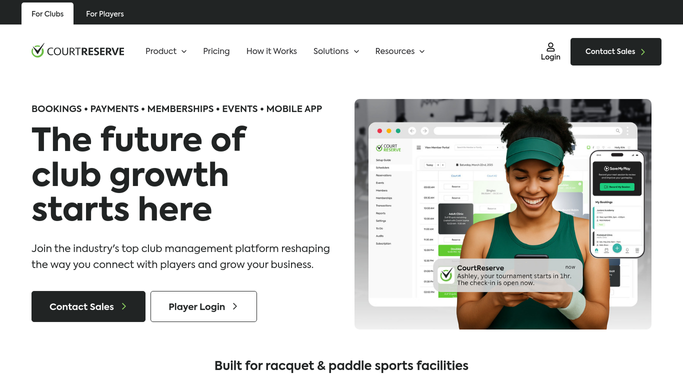
CourtReserve - find cancelled courts with waitlist entries
courtreserve.com

WebRun opens CourtReserve to find cancelled courts with waitlist entries. - Open CourtReserve and check the reservations calendar for same-day and next-day cancellations
- For each cancelled slot, check whether a waitlist exists for that court time
- Capture the court number, slot time, and the top waitlist member's name and email
- Skip any slot already offered to a waitlist member today
Done when Every cancelled court with a waitlist entry is listed with the next eligible member's contact details.
-
2
Gmail - draft availability offer for next waitlist member
gmail.com How to Automate Gmail
WebRun opens Gmail to draft availability offer for next waitlist member. - Draft an availability offer email for each waitlist member naming the court, date, and time that just opened
- Include a clear call to action and a booking link
- Save every email as a draft for staff review. Do not send without approval
Done when An availability offer draft is queued in Gmail for every open court with a waitlist entry.
-
3
Slack - post open-court summary to staff
slack.com How to Automate Slack
WebRun opens Slack to post open-court summary to staff. - Post an open-court summary listing each cancelled slot, the court, the time, and the waitlist member being offered the slot
- Note how many Gmail drafts need review
- Flag same-day slots as time-sensitive for quick approval
Done when Staff have an open-court overview in Slack with same-day slots marked as urgent.


How do I automatically fill cancelled courts from a waitlist?
WebRun checks CourtReserve every morning for cancelled court slots that have a waitlist. For each open slot, it drafts an availability offer email for the next waitlisted member in Gmail and queues it for staff review. Same-day openings are flagged as urgent in Slack so the team can approve and send quickly.
- Cancelled courts get a fill offer drafted within hours instead of staying empty
- Waitlisted members get priority access without staff manually checking the list
- Same-day cancellations are flagged as urgent so staff can act fast
Built for tennis clubs · pickleball clubs · racquet sports clubs · court managers
How is each run configured?
Secure by default
Connect once, stays signed in
WebRun signs in once and keeps each session in a persistent environment, so every run picks up right where it left off.
Every action is checked against this policy before it runs.
Questions, answered
Will it offer the court to a waitlist member without staff approval?
No. Every availability offer is saved as a Gmail draft for staff to review and send. No member is contacted without a human approving it first.
How does it decide which waitlist member to offer the slot to?
It reads the waitlist order from CourtReserve and drafts an offer for the member at the top of the list for that specific court and time slot.
What if the slot fills before the draft is approved?
The Slack summary notes the booking status at run time. If a slot is rebooked before staff approve the draft, they can discard it without sending.
Related templates
Put this on autopilot.
Turn it on in minutes - or have our team set it up for you.