Track maintenance requests and assign them to vendors
Every few minutes, WebRun reads new maintenance requests in Buildium, logs each one in your work-order tracker, matches it to your preferred vendor by trade and property, and drafts the vendor work-order email for your review before anything is dispatched.
- No credit card
- Under $0.01 per run
- Cancel anytime
What does WebRun do on every run?
The exact actions WebRun takes, in order - in plain language, so you can adjust anything.
-
WebRun signs in and gets to work
Opens
app.buildium.comin a real browser with your saved login - no setup, no API keys. -
1
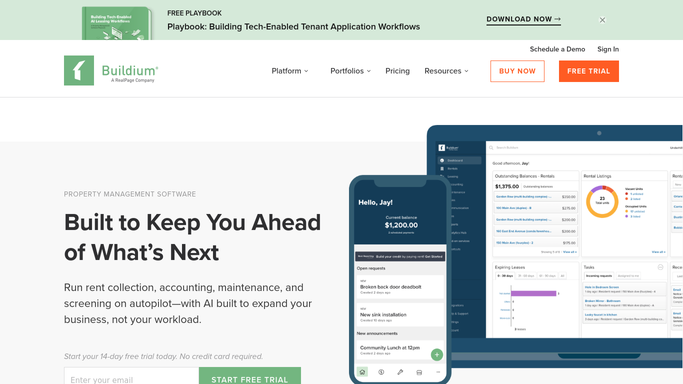
Buildium - read new maintenance requests
buildium.com How to Automate Buildium

WebRun opens Buildium to read new maintenance requests. - Open the Maintenance tab in Buildium and filter to Open requests created in the last hour
- Read the tenant name, unit, issue category, description, and any photos attached
- Categorise the issue: plumbing, HVAC, electrical, general repair, or appliance
Done when Every new maintenance request is read and categorised.
-
2
Google Sheets - log and match to a vendor
google.com How to Automate Google Sheets
WebRun opens Google Sheets to log and match to a vendor. - Open the work-order tracker and append a row for each new request
- Look up the preferred vendor for the issue category and property in the vendor roster tab
- Flag any request marked Urgent by the tenant in the Priority column
Done when Each request is logged in the tracker with a matched vendor and priority level.
-
3
Gmail - draft the vendor work-order email
gmail.com How to Automate Gmail
WebRun opens Gmail to draft the vendor work-order email. - Draft a work-order email to the matched vendor with the tenant's unit, issue description, and access instructions
- Attach any photos from the Buildium request
- Save as a Gmail draft - do not send until you approve
Done when A vendor work-order draft exists in Gmail for every new maintenance request.


How can I automatically track maintenance requests and assign them to vendors?
Every few minutes, WebRun reads new maintenance requests in Buildium, logs each one in your Google Sheets work-order tracker, matches it to your preferred vendor by trade and property, and drafts a vendor work-order email - you approve every dispatch before anything is sent.
- Every new maintenance request logged and matched to a vendor automatically
- Work-order drafts ready for approval in minutes, not hours
- No maintenance ticket falls through the cracks
Built for property managers · facilities managers · residential property companies · commercial property teams
How is each run configured?
Secure by default
Connect once, stays signed in
WebRun signs in once and keeps each session in a persistent environment, so every run picks up right where it left off.
Every action is checked against this policy before it runs.
Questions, answered
Will it dispatch vendors without my sign-off?
No. The vendor email is a Gmail draft until you approve it. Urgent requests are flagged at the top so you can prioritise quickly.
How does it know which vendor to assign?
It reads a vendor roster tab in your Google Sheet that maps trade category and property to your preferred contractor. You update that roster whenever you add a new vendor.
What if no vendor is listed for that trade?
WebRun flags the gap in the tracker and alerts you in Slack so you can assign the vendor manually.
Related templates
Put this on autopilot.
Turn it on in minutes - or have our team set it up for you.