Triage and route incoming course requests
Every morning, WebRun opens Cognota, reviews course requests submitted since the last run, scores each by urgency, audience size, and business unit, matches it to the right team or designer, and posts a routed triage list to Slack so nothing waits unassigned.
- No credit card
- Under $0.01 per run
- Cancel anytime
What does WebRun do on every run?
The exact actions WebRun takes, in order - in plain language, so you can adjust anything.
-
WebRun signs in and gets to work
Opens
app.cognota.comin a real browser with your saved login - no setup, no API keys. -
1
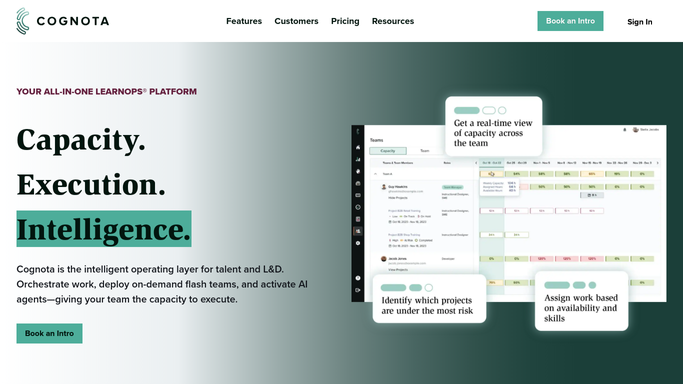
Cognota - review new course requests
cognota.com How to Automate Cognota

WebRun opens Cognota to review new course requests. - Open Cognota and filter the intake queue to requests submitted since yesterday
- Read each request's business goal, deadline, audience size, and requesting business unit
- Assign a priority tier using urgency and impact, high, medium, or low
- Match each request to the owning team or designer based on business unit and topic
Done when Every new request has a priority tier and a suggested owner.
-
2
Slack - post the routed triage list
slack.com How to Automate Slack
WebRun opens Slack to post the routed triage list. - Post a triage summary to the internal L&D Slack channel
- Group requests by priority tier, highest first, with the suggested owner @-mentioned
- Include the deadline and business unit for each request
- Leave routing as a recommendation for the lead to confirm, do not reassign anyone in Cognota automatically
Done when The team has a routed, prioritized triage list in Slack for the day.

How do I automatically triage and route incoming training requests?
WebRun reviews new Cognota course requests every morning, scoring each by urgency, deadline, and audience size, then matching it to the right team or designer. It posts a routed, priority-sorted triage list to your internal Slack channel with a suggested owner for each, so requests are actioned the same day instead of sitting unassigned in the queue.
- New requests are prioritized and routed the same morning they arrive
- The team opens Slack to a ranked worklist instead of an unsorted queue
- High-impact requests stop getting buried under low-priority ones
Built for L&D leads · learning operations teams · instructional design managers · training program managers
How is each run configured?
Secure by default
Connect once, stays signed in
WebRun signs in once and keeps each session in a persistent environment, so every run picks up right where it left off.
Every action is checked against this policy before it runs.
Questions, answered
Does it reassign requests on its own?
No. Routing is posted to Slack as a recommendation with a suggested owner. Your lead confirms and makes the assignment in Cognota, so no work is moved without a human decision.
How does it decide priority?
It scores each request on urgency, deadline, and audience impact, then sorts the list so the highest-priority requests sit at the top. You can tell WebRun your own tiering rules to match how your team ranks work.
Will it re-post requests it already triaged?
No. It only looks at requests submitted since the last run, so each request is triaged once and does not clutter tomorrow's list.
Related templates
Put this on autopilot.
Turn it on in minutes - or have our team set it up for you.