See who is overloaded before you assign more work
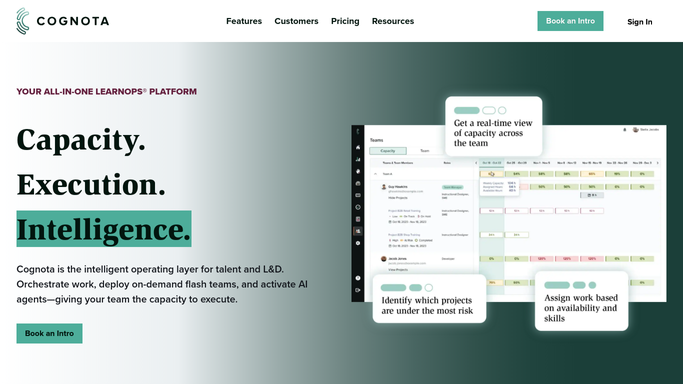
Every Monday, WebRun opens Cognota, reads each designer's assigned project hours against their weekly capacity and time off, logs the load to a Google Sheet, and posts a Slack digest showing who is over capacity and who has room, so you assign new work with eyes open.
- No credit card
- Under $0.01 per run
- Cancel anytime
What does WebRun do on every run?
The exact actions WebRun takes, in order - in plain language, so you can adjust anything.
-
WebRun signs in and gets to work
Opens
app.cognota.comin a real browser with your saved login - no setup, no API keys. -
1
Cognota - read team capacity and assignments
cognota.com How to Automate Cognota

WebRun opens Cognota to read team capacity and assignments. - Open Cognota and go to capacity planning for the coming week
- For each designer, read assigned project hours, default weekly capacity, and booked time off
- Calculate committed hours as a share of available capacity
- Flag anyone over 100 percent as overloaded and anyone well under as having headroom
Done when Every designer has a load percentage and an over or under capacity flag for the week.
-
2
Google Sheets - log each designer's load
google.com How to Automate Google Sheets
WebRun opens Google Sheets to log each designer's load. - Open the Team Capacity Tracker sheet
- Append a row per designer with committed hours, capacity, time off, and load percentage
- Sort the week's rows from most overloaded to most available
- Keep prior weeks so the trend in each designer's load is visible over time
Done when The capacity tracker sheet holds this week's load for every designer.
-
3
Slack - post the capacity digest
slack.com How to Automate Slack
WebRun opens Slack to post the capacity digest. - Post a capacity digest to the internal L&D Slack channel
- List overloaded designers first with their load percentage, then those with headroom
- Link the full Google Sheet for the complete breakdown
- Frame the headroom list as a suggestion for assigning new work, not an instruction
Done when The team has a Slack digest of who is overloaded and who has room this week.


How do I see which instructional designers are overloaded each week?
WebRun reads your team's Cognota capacity every Monday, comparing each designer's assigned hours to their weekly limit and booked time off. It logs the load to a Google Sheet and posts a Slack digest listing who is over capacity and who has headroom, so you assign new training work knowing exactly who can absorb it.
- Overloaded designers are visible before more work lands on them
- New assignments go to people with real headroom, not guesses
- Load trends per designer build up week over week in one sheet
Built for L&D managers · resource planners · instructional design leads · learning operations teams
How is each run configured?
Secure by default
Connect once, stays signed in
WebRun signs in once and keeps each session in a persistent environment, so every run picks up right where it left off.
Every action is checked against this policy before it runs.
Questions, answered
Does it move assignments between designers?
No. It reports load and headroom to Slack and a Google Sheet only. Rebalancing work stays your call, made in Cognota, so no one's assignments change without a human deciding.
How does it account for time off and holidays?
It reads each designer's booked time off and default weekly capacity from Cognota, so committed hours are measured against real availability, not a flat 40-hour assumption.
Can I see how load changes over time?
Yes. It keeps every prior week in the Google Sheet, so you can see whether a designer has been overloaded for one week or several and plan hiring or reassignment accordingly.
Related templates
Put this on autopilot.
Turn it on in minutes - or have our team set it up for you.