See every lease expiring across your portfolio
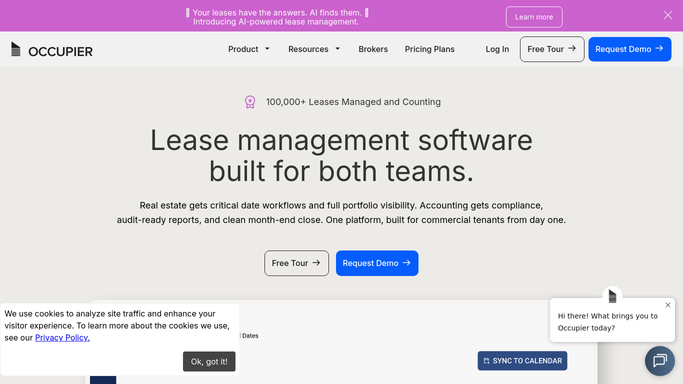
Every month, WebRun opens Occupier, pulls every lease expiring in the next 24 months across the portfolio, writes the full look ahead list to Google Sheets, holds a calendar reminder at the 18, 12, and 6 month marks for each one, drafts a renewal strategy note in Gmail for leases inside 12 months, and gives your team the summary.
- No credit card
- Under $0.01 per run
- Cancel anytime
What does WebRun do on every run?
The exact actions WebRun takes, in order - in plain language, so you can adjust anything.
-
WebRun signs in and gets to work
Opens
occupier.comin a real browser with your saved login - no setup, no API keys. -
1
Occupier - find leases expiring in the next 24 months
occupier.com How to Automate Occupier

WebRun opens Occupier to find leases expiring in the next 24 months. - Open Occupier and pull every lease with a term end date in the next 24 months
- Capture the lease, location, base rent, renewal options available, and term end date for each
- Sort by term end date, soonest first
Done when Every lease expiring in the next 24 months is listed with its term end date and renewal options.
-
2
Google Sheets - write the full look ahead list
google.com How to Automate Google Sheets
WebRun opens Google Sheets to write the full look ahead list. - Open the Expiring Lease Portfolio sheet and refresh it with this month's look ahead list
- Write one row per lease with location, base rent, options available, and term end date
- Tag each lease as inside 12 months, 12 to 18 months, or 18 to 24 months
Done when The look ahead sheet reflects every lease expiring in the next 24 months, tagged by window.
-
3
Google Calendar - hold milestone reminders
calendar.google.com How to Automate Google Calendar
WebRun opens Google Calendar to hold milestone reminders. - Hold a milestone reminder at 18, 12, and 6 months before each lease's term end date, skipping milestones already past
- Title each hold with the location and which milestone it marks
Done when Every expiring lease has its remaining milestone reminders on the calendar.
-
4
Gmail - draft the renewal strategy note
gmail.com How to Automate Gmail
WebRun opens Gmail to draft the renewal strategy note. - Draft a renewal strategy note for each lease expiring within 12 months, summarizing the renewal options, current rent, and market context you provide
- Address it to the portfolio manager responsible for the decision
- Leave every draft unsent in Gmail for review. Do not send anything automatically
Done when A Gmail draft exists for every lease inside 12 months, awaiting the manager's review.



How do I see every lease expiring across my portfolio in one place?
Every month, WebRun opens Occupier and pulls every lease expiring in the next 24 months. It writes the full look ahead list to Google Sheets, holds calendar reminders at the 18, 12, and 6 month marks, and drafts a renewal strategy note in Gmail for leases inside 12 months, so no expiration in the portfolio is a surprise.
- Every expiring lease is visible 24 months out, not discovered late
- Renewal decisions get milestone reminders instead of a scramble
- Strategy notes are drafted and ready before the decision point arrives
Built for lease administrators · corporate real estate teams · portfolio managers · commercial tenants
How is each run configured?
Secure by default
Connect once, stays signed in
WebRun signs in once and keeps each session in a persistent environment, so every run picks up right where it left off.
Every action is checked against this policy before it runs.
Questions, answered
Does it decide whether to renew or exit a lease?
No. WebRun only compiles the look ahead report and drafts a strategy note summarizing the options. The renewal, renegotiation, or exit decision stays with your portfolio manager.
Why milestones at 18, 12, and 6 months?
Those are common decision points for a commercial lease: enough lead time to negotiate, exercise an option, or plan a relocation. WebRun holds a calendar reminder at each one so a milestone is never missed.
Will it re draft the same strategy note every month?
It refreshes the note as the lease moves closer to its term end date and details change, but it never sends anything itself. Only what's still a draft in Gmail is ever sent, and only when your team sends it.
Related templates
Put this on autopilot.
Turn it on in minutes - or have our team set it up for you.