Request a review from every completed irrigation job automatically
When a job is marked complete in Kickserv, WebRun reads the customer's details and job summary, drafts a personalized review request email in Gmail for your approval, and logs the request in Google Sheets so you can track your review rate over time.
- No credit card
- Under $0.01 per run
- Cancel anytime
What does WebRun do on every run?
The exact actions WebRun takes, in order - in plain language, so you can adjust anything.
-
WebRun signs in and gets to work
Opens
app.kickserv.comin a real browser with your saved login - no setup, no API keys. -
1
Kickserv - detect completed job and read customer details
kickserv.com How to Automate Kickserv

WebRun opens Kickserv to detect completed job and read customer details. - Detect when a job status changes to Complete in Kickserv
- Capture the customer's name, email, job type, technician name, and completion date
- Skip customers who received a review request in the past 90 days to avoid repeat asks
Done when The completed job's customer details are captured and ready for outreach.
-
2
Gmail - draft personalized review request for approval
gmail.com How to Automate Gmail
WebRun opens Gmail to draft personalized review request for approval. - Draft a personalized review request email mentioning the specific job type and technician
- Include a direct link to your Google Business or preferred review platform
- Leave the draft unsent for your review - do not send automatically
Done when A Gmail draft review request exists for the customer, awaiting your approval.
-
3
Google Sheets - log review request status
google.com How to Automate Google Sheets
WebRun opens Google Sheets to log review request status. - Add a row to the review tracker with the customer name, job date, and draft status
- Update the row when you approve and send the request
- Flag customers who do not open or respond after 7 days for a follow-up consideration
Done when The review request is logged in Google Sheets with its current status.
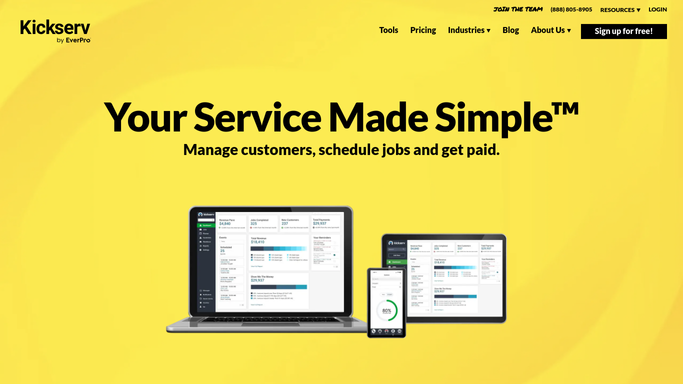


How do I automatically request reviews after completing irrigation jobs?
When a job is marked complete in Kickserv, WebRun captures the customer's details and drafts a personalized review request email in Gmail for your approval before anything is sent. It logs every request in Google Sheets, skips recent contacts, and tracks your review rate so you can build your reputation consistently.
- Every completed job triggers a review request draft with no manual effort
- No review request reaches a customer without your approval
- Google Sheets tracker shows which customers received requests and when
Built for irrigation contractors · sprinkler system companies · landscape irrigation businesses · field service teams
How is each run configured?
Secure by default
Connect once, stays signed in
WebRun signs in once and keeps each session in a persistent environment, so every run picks up right where it left off.
Every action is checked against this policy before it runs.
Questions, answered
Will it email review requests to customers automatically?
No. Every review request is drafted in Gmail and held for your approval. Only after you review and send the draft does any message reach the customer.
How does it avoid sending a review request to the same customer twice?
It checks the Google Sheets log before drafting and skips any customer who received a review request in the past 90 days, preventing repeat or spammy outreach.
Can I customize the review platform link it includes in the draft?
Yes. You configure your preferred review link once during setup, such as Google Business Profile or another platform, and WebRun uses it in every draft it creates.
Related templates
Put this on autopilot.
Turn it on in minutes - or have our team set it up for you.