Bring lapsed players back
Every Monday, WebRun scans your Google Sheets customer history for players who haven't visited or purchased in 60 days, builds a lapsed-customer segment in Mailchimp, drafts a winback email with a special offer for staff to review, and posts a summary to Slack.
- No credit card
- Under $0.01 per run
- Cancel anytime
What does WebRun do on every run?
The exact actions WebRun takes, in order - in plain language, so you can adjust anything.
-
WebRun signs in and gets to work
Opens
docs.google.com/spreadsheetsin a real browser with your saved login - no setup, no API keys. -
1
Google Sheets - identify lapsed customers
google.com How to Automate Google Sheets

WebRun opens Google Sheets to identify lapsed customers. - Open the customer history sheet and filter for customers whose last visit or purchase date is more than 60 days ago
- Exclude customers who have already received a winback message in the past 90 days
- Capture each lapsed customer's name, email, last visit date, and favorite game category
Done when A list of lapsed customers eligible for winback outreach is ready.
-
2
Mailchimp - build segment and draft winback email
mailchimp.com How to Automate Mailchimp
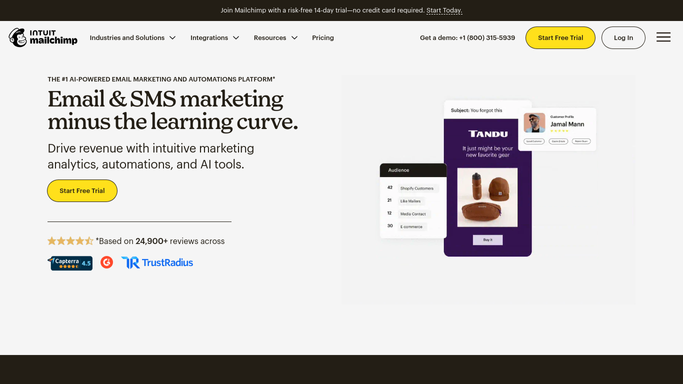
WebRun opens Mailchimp to build segment and draft winback email. - Create or update a lapsed-customers segment in Mailchimp with this week's eligible list
- Draft a winback email with a personalized subject line and a special in-store offer
- Leave the campaign in draft status for staff to review before scheduling
Done when A winback email campaign draft is ready in Mailchimp for staff review.
-
3
Slack - alert staff to review and approve
slack.com How to Automate Slack
WebRun opens Slack to alert staff to review and approve. - Post a Slack message to the marketing channel listing the number of lapsed customers in this week's batch
- Note the Mailchimp draft is ready for review with a link to the campaign
- Remind staff that the campaign needs approval before it is scheduled to send
Done when Staff are alerted in Slack that the winback draft is ready for review and approval.


How do I automatically find lapsed hobby shop customers and draft a winback offer?
Every Monday, WebRun scans your Google Sheets customer history for players inactive for 60-plus days, builds a lapsed-customer segment in Mailchimp, and drafts a winback email with a special offer. Staff review and approve the campaign in Mailchimp before it sends, so the message is always on-brand.
- Lapsed players identified every week without manual list review
- Winback email drafted automatically with a personal offer ready to edit
- No campaign sent until staff review and approve the message
Built for game store owners · hobby shop managers · tabletop gaming community managers · card game shop operators
How is each run configured?
Secure by default
Connect once, stays signed in
WebRun signs in once and keeps each session in a persistent environment, so every run picks up right where it left off.
Every action is checked against this policy before it runs.
Questions, answered
Will it send the winback email to lapsed customers automatically?
No. WebRun drafts the campaign in Mailchimp and leaves it in draft status. Staff review the email and approve it before it is scheduled, so the offer and tone are always checked by a human first.
How is a lapsed customer defined?
By default, any customer with no recorded visit or purchase in the past 60 days qualifies. You can adjust this window to match your store's natural visit frequency, such as 30 days for weekly event regulars.
What if a lapsed customer comes back before the email is sent?
If their return visit is logged in Google Sheets before staff send the campaign, WebRun will exclude them from the next week's lapsed list. Staff can also remove them from the Mailchimp draft manually before sending.
Related templates
Put this on autopilot.
Turn it on in minutes - or have our team set it up for you.