Run your notebook and report the result each morning
Every morning, WebRun opens your Google Colab notebook, runs all cells from top to bottom, waits for the run to finish, saves the executed copy and any exported files into a dated Google Drive folder, and posts a short Slack message saying whether the run passed and where the output landed.
- No credit card
- Under $0.01 per run
- Cancel anytime
How do I run a Colab notebook on a schedule and get the result?
WebRun opens your Google Colab notebook every morning and runs all cells from top to bottom. It saves the executed copy and any exports into a dated Google Drive folder, then posts a Slack message stating whether the run passed, how long it took, and the failing cell if it did not.
- The morning notebook run happens whether or not anyone opens a laptop
- Failures reach Slack with the failing cell and error text
- Every run's output is filed in a dated folder you can go back to
Built for data scientists · analytics engineers · research teams · ML practitioners
What does WebRun do on every run?
The exact actions WebRun takes, in order - in plain language, so you can adjust anything.
-
WebRun signs in and gets to work
Opens
colab.research.google.comin a real browser with your saved login - no setup, no API keys. -
1
Google Colab - run the notebook end to end
colab.research.google.com
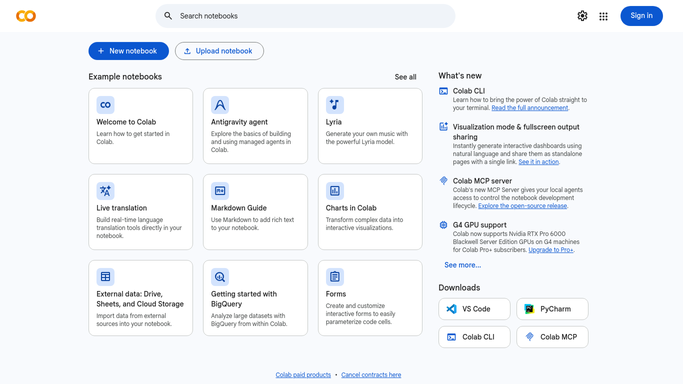
WebRun opens Google Colab to run the notebook end to end. - Open the Google Colab notebook you nominate
- Choose Runtime and then Run all, then wait for every cell to finish
- Capture the run time, the final cell output, and the text of any cell that errored
- Stop at the first failing cell and record it rather than editing the code
Done when The notebook has finished running and the outcome is recorded as passed or failed.
-
2
Google Drive - save the output
drive.google.com How to Automate Google Drive

WebRun opens Google Drive to save the output. - Open your Notebook Runs folder in Google Drive
- Create a subfolder named with today's date
- Save the executed notebook copy and any files the run exported into it
- Keep the last 30 days and note anything older for you to clear
Done when Today's run output is filed in a dated Google Drive folder.
-
3
Slack - report pass or fail
slack.com How to Automate Slack

WebRun opens Slack to report pass or fail. - Post a short message to your data channel in Slack
- Lead with passed or failed, the run time, and the headline number from the final cell
- On a failure, paste the failing cell and the first lines of its error
- Link the Google Drive folder holding the output
Done when The channel knows whether this morning's run passed and where the output is.
How is each run configured?
Secure by default
Connect once, stays signed in
WebRun signs in once and keeps each session in a persistent environment, so every run picks up right where it left off.
Every action is checked against this policy before it runs.
Questions, answered
Will it edit my notebook code?
No. WebRun runs the cells you already wrote and stops at the first failure. It never edits, adds, or deletes a cell. A broken run is reported to Slack with the error text so a person decides what to fix.
What happens if the runtime disconnects?
The run is marked as failed with the disconnect noted, and Slack gets the same message it would for any other failure. WebRun does not silently retry and pretend the morning job succeeded.
Does it delete old output folders?
No. It keeps folders in place and simply names anything older than 30 days in the Slack message, so removal stays a deliberate human decision.
Related templates
Put this on autopilot.
Turn it on in minutes - or have our team set it up for you.