Know which FlutterFlow projects are still alive
Every month, WebRun signs in to FlutterFlow, lists every project in your workspace with its owner, collaborators, and last edit date, writes the inventory to a Google Sheet with a dated tab, and posts a WhatsApp summary naming the projects that have gone quiet and the ones with no named owner.
- No credit card
- Under $0.01 per run
- Cancel anytime
How do I keep track of all our no-code app projects and their owners?
WebRun inventories your FlutterFlow workspace every month. It lists every project with its owner, collaborators, and last edit date, writes a dated tab into Google Sheets, and posts a WhatsApp summary naming the projects that have gone stale or have no owner assigned.
- Every project has a named owner or gets flagged the same month
- Abandoned builds surface before they become a licence cost
- A dated sheet shows how the portfolio changed month to month
Built for no-code teams · app studios · product operations · engineering managers
What does WebRun do on every run?
The exact actions WebRun takes, in order - in plain language, so you can adjust anything.
-
WebRun signs in and gets to work
Opens
app.flutterflow.ioin a real browser with your saved login - no setup, no API keys. -
1
FlutterFlow - list every project
flutterflow.io
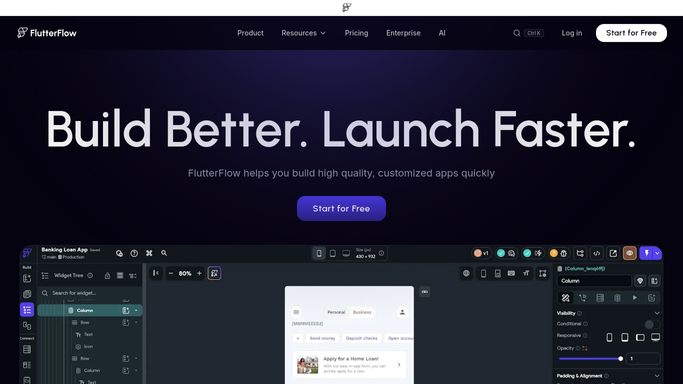
WebRun opens FlutterFlow to list every project. - Sign in to FlutterFlow and open your projects list
- Capture each project name, its owner, its collaborators, and the last edit date
- Note which team or folder each project belongs to
- Mark any project with no edits inside your stale window
Done when Every project in the workspace is captured with its owner and last edit date.
-
2
Google Sheets - write the dated inventory
google.com How to Automate Google Sheets

WebRun opens Google Sheets to write the dated inventory. - Open your workspace inventory sheet and add a tab dated this month
- Write one row per project with name, owner, collaborators, team, and last edit date
- Add a days-since-edit column so stale work sorts to the top
- Keep previous months' tabs so the trend stays visible
Done when This month's project inventory is saved as its own dated tab.
-
3
WhatsApp - flag stale and ownerless projects
whatsapp.com How to Automate WhatsApp

WebRun opens WhatsApp to flag stale and ownerless projects. - Post a short summary to your internal build team group
- Name every project past the stale window with its days since last edit
- Name every project with no assigned owner
- Link the sheet for the full inventory
Done when The build team has this month's stale and ownerless project list.
How is each run configured?
Secure by default
Connect once, stays signed in
WebRun signs in once and keeps each session in a persistent environment, so every run picks up right where it left off.
Every action is checked against this policy before it runs.
Questions, answered
Can it delete or archive a project?
No. WebRun reads the project list and records it. Deleting, archiving, duplicating, or deploying a project is never done by the run, so a stale project is only ever reported.
Does it open or edit any project build?
No. It reads the workspace project list and its metadata only. No page, widget, action, or data schema inside a project is opened for editing.
How long before a project counts as stale?
Whatever window you set, commonly 60 or 90 days without an edit. Everything else is recorded in the sheet without appearing in the WhatsApp flag list.
Related templates
Put this on autopilot.
Turn it on in minutes - or have our team set it up for you.