Draft the invoice the moment an episode dub is approved
Each morning, WebRun checks VoiceQ for projects or episodes newly marked approved or delivered, gathers the billable scope such as languages, runtime, and line counts, drafts a matching invoice in QuickBooks, and pings you in Slack to review and send, so approved work is invoiced without delay.
- No credit card
- Under $0.01 per run
- Cancel anytime
What does WebRun do on every run?
The exact actions WebRun takes, in order - in plain language, so you can adjust anything.
-
WebRun signs in and gets to work
Opens
www.voiceq.comin a real browser with your saved login - no setup, no API keys. -
1
VoiceQ - find newly approved episodes
voiceq.com How to Automate VoiceQ

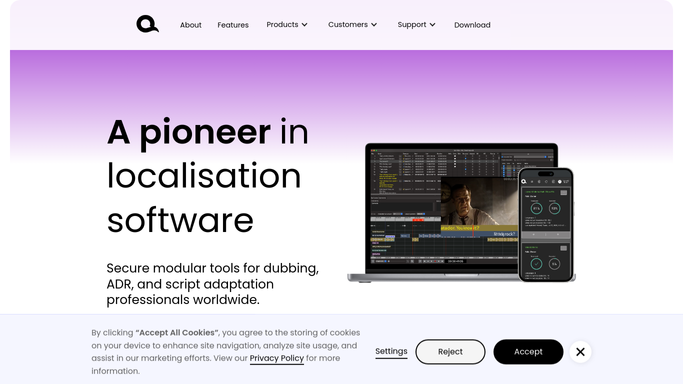
WebRun opens VoiceQ to find newly approved episodes. - Open VoiceQ and find projects or episodes marked approved or delivered since the last run
- Capture the client, languages, episode or runtime count, and total recorded lines
- Note any rate or purchase-order reference stored with the project
Done when Every newly approved episode has its client and billable scope captured.
-
2
QuickBooks - draft the matching invoice
- Open QuickBooks and start a new invoice for the client on each approved episode
- Add line items for the languages, runtime, and services using your agreed rates
- Save the invoice as a draft. Never send it to the client without your approval
Done when A draft invoice exists in QuickBooks for every newly approved episode.
-
3
Slack - ping you to review and send
slack.com How to Automate Slack
WebRun opens Slack to ping you to review and send the drafts. - Post a Slack note listing each drafted invoice with client, amount, and the episode it covers
- Flag any project missing a rate or PO so it can be resolved before sending
- Leave sending to you, so nothing reaches the client automatically
Done when You have a Slack list of drafted invoices ready to review and send.

How do I draft an invoice when a dubbing episode is approved?
Each morning, WebRun checks VoiceQ for episodes newly marked approved, gathers the billable languages, runtime, and line counts, and drafts a matching invoice in QuickBooks using your rates. It leaves every invoice as a draft and pings you in Slack with the amounts and any missing rates, so approved work is billed promptly and nothing sends on its own.
- Approved episodes get invoiced the same day, not weeks later
- Every invoice is drafted from real VoiceQ scope, then held for review
- Missing rates or POs are flagged before anything reaches the client
Built for dubbing studios · voiceover studio owners · localization vendors · studio finance staff
How is each run configured?
Secure by default
Connect once, stays signed in
WebRun signs in once and keeps each session in a persistent environment, so every run picks up right where it left off.
Every action is checked against this policy before it runs.
Questions, answered
Will it send invoices to clients without me?
No. Every invoice is saved as a draft in QuickBooks and left for you to review. Nothing is sent to a client until you check the amount and click send yourself, so billing stays under your control.
How does it know what to bill?
It reads the approved project's languages, runtime, and line counts from VoiceQ and applies your agreed rates in QuickBooks. If a rate or purchase order is missing, it flags the invoice in Slack rather than guessing.
What if an episode is not fully approved yet?
It only drafts an invoice once the project or episode is marked approved or delivered in VoiceQ, so work still in progress is left alone until it is genuinely ready to bill.
Related templates
Put this on autopilot.
Turn it on in minutes - or have our team set it up for you.