Turn failed inspection items into tracked work orders
Every morning, WebRun opens InspectAll, reads the items that failed on recent inspections, opens or updates a follow-up work-order row for each in a Google Sheet with the crane, defect, and priority, and posts your service manager a Slack digest of the open corrective work so nothing a technician found stays unresolved.
- No credit card
- Under $0.01 per run
- Cancel anytime
What does WebRun do on every run?
The exact actions WebRun takes, in order - in plain language, so you can adjust anything.
-
WebRun signs in and gets to work
Opens
www.inspectall.comin a real browser with your saved login - no setup, no API keys. -
1
InspectAll - read failed inspection items
inspectall.com How to Automate InspectAll

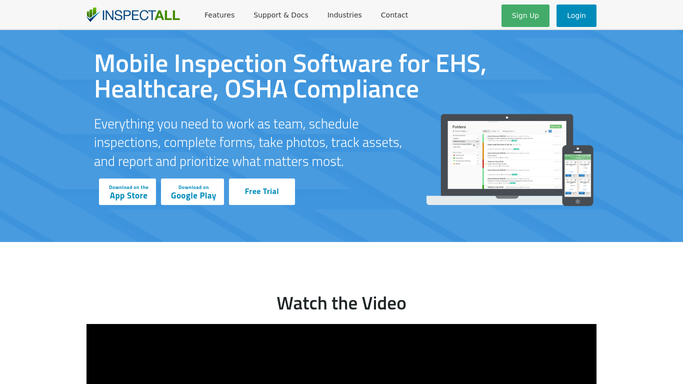
WebRun opens InspectAll to read the items that failed on recent inspections. - Open InspectAll and read the items that failed on inspections completed recently
- Capture the crane serial number, the failed item, its priority, and the recommended fix
- Note whether a repair has already been logged so resolved items are skipped
Done when Every failed inspection item is captured with its crane, priority, and recommended fix.
-
2
Google Sheets - open a work-order row
google.com How to Automate Google Sheets
WebRun opens a follow-up work-order row per failed item in a Google Sheet. - Open or append a work-order row per failed item: crane, defect, priority, and date found
- Mark items with a matching completed repair as closed so the list stays current
- Sort so the highest-priority open corrective work sits at the top
Done when Every open failed item has a live work-order row and resolved ones are closed.
-
3
Slack - digest open corrective work
slack.com How to Automate Slack
WebRun posts the service manager a digest of open corrective work in Slack. - Post the service manager a digest of open corrective work with the highest priority first
- Flag any safety-critical item that has stayed open longer than your target days
- Keep it an internal digest for your own team, not a customer message
Done when The service manager has today's open corrective-work digest in Slack.


How do I track corrective work from failed crane inspection items?
Every morning, WebRun reads the items that failed on recent InspectAll inspections, opens or updates a follow-up work-order row for each in a Google Sheet with the crane, defect, and priority, and posts your service manager an internal Slack digest of open corrective work. It closes items that already have a logged repair, so nothing a technician flagged stays unresolved.
- Every failed item becomes a tracked work order, none forgotten
- Safety-critical work that sits too long is flagged automatically
- The service manager sees all open corrective work each morning
Built for overhead crane service companies · service managers · operations leads · field-service teams
How is each run configured?
Secure by default
Connect once, stays signed in
WebRun signs in once and keeps each session in a persistent environment, so every run picks up right where it left off.
Every action is checked against this policy before it runs.
Questions, answered
Does it change anything in InspectAll?
No. WebRun only reads the failed items from your inspections. It never edits an inspection or closes a finding in InspectAll. The work-order tracking and the Slack digest are internal summaries for your own team.
How does it stop resolved items from lingering?
It checks each failed item against your logged repairs and marks the matching work-order row closed, so the list and the digest show only corrective work that is still genuinely open.
How does it prioritize the list?
It carries each item's priority from InspectAll and sorts the highest first, then flags any safety-critical item that has stayed open past your target days so the most urgent work never gets buried.
Related templates
Put this on autopilot.
Turn it on in minutes - or have our team set it up for you.