How to Automate Box
Use Box Automate for anything that starts inside Box, such as an upload or a completed Box Sign request, and turn on the Admin Console settings that expire new shared links and external collaborations. Fetching documents from other systems, and acting on the weekly Shared Links report, is browser work that WebRun, an AI agent, can take on.
 Written by
Priya Raghavan
Solutions lead
Written by
Priya Raghavan
Solutions lead
 Reviewed by
Ben Kirkwood
Solutions engineer
Reviewed by
Ben Kirkwood
Solutions engineer
Box is where the signed and classified copy is kept
Box (box.com) holds the contracts and records a company may one day have to hand over, with the rules on who may open each one attached to the file. In a hospital, biomedical engineering keeps every infusion pump's manual and calibration certificate in that device's folder; a lender keeps its signed loan agreements there.
From Business Plus up, a metadata template puts fields on each file, such as a contract's counterparty and renewal date. Enterprise plans add security classifications, so a folder labelled Confidential carries its access policy with it, and the Box Governance add-on holds a record under a retention policy until its period ends. Box Sign, on every business plan, sends a document out for signature and saves the completed copy to the folder the sender picks.
A records manager sets those rules, and the Box admin answers for sharing across the account. Outside counsel and suppliers work inside particular folders as external collaborators.
An audit request turns into a week of downloads
An auditor's request list might ask for the policy in force last March, a sample of invoices, the signed supplier contracts and one department's training certificates. Almost none of it starts in Box. The compliance analyst signs in to each system that holds an item, downloads it, renames it to the convention, uploads it to the audit folder and fills in the metadata fields, then starts on the next line.
The contracts manager has forty Box Sign requests out, a few stuck on one person each, and spends Thursday afternoon working out which are holding up a closing.
A Shared Links report the Box admin scheduled months ago lands in the Box Reports folder every Monday. Scattered through it are links set to People with the link and no expiry date, which anyone holding the URL can open without signing in. The Collaborations report lists external collaborators from projects that ended last year, still on their folders because nobody told the admin.
Box's expiry settings cover new links and new collaborators
Box Automate, the replacement for Box Relay, starts a workflow when something happens in Box: a file lands or is classified, a task is approved, a Box Sign request finishes, or a schedule comes round. The builder comes with Business plans; full branching and shared workflows need Enterprise, and AI agents, Box Forms, Doc Gen and the Box Sign step need Enterprise Advanced.
Box Sign reminds anyone who has not signed on days 3, 6, 11 and 16 when the sender ticks Send automatic reminders. The Admin Console's Content & Sharing settings can disable shared links, or only public ones, once they reach an age the admin sets, and remove invited external collaborators after a period that defaults to 60 days. On Enterprise plans, or with the Box Shield add-on on Business plans, a classification-based access policy can expire links too.
Those settings cover only links and collaborations created after an admin turns them on, so a public link made two years ago stays open, and last year's auditor is still a collaborator. The Sign reminders go out on the same four days for every request, whichever deal it holds up. Box Automate's HTTPS connector needs an API on the receiving system and a File Request needs someone to do the upload, so evidence held in a supplier portal still arrives by hand.
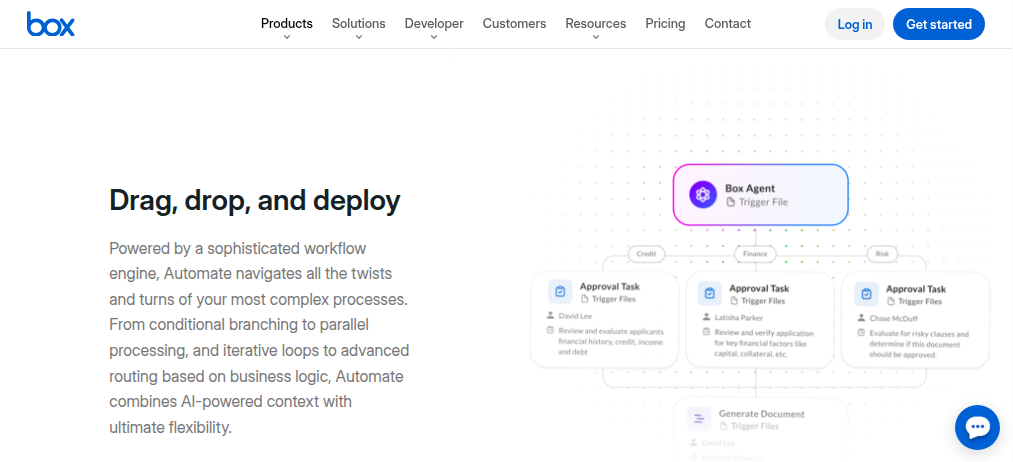
Audit folders filled from the systems that hold the evidence
The compliance analyst passes on the auditor's request list and works from what comes back: an audit folder with every item named to the convention and its metadata filled in, so it sorts by control and period, and a gap list of whatever no system could supply. The compliance officer reads the folder before inviting the auditor.
The contracts manager stops sorting Box Sign requests on Thursday afternoons. An Airtable view lists every open request beside the closing date of its deal or matter, soonest first, and the manager sends or deletes a follow-up note in Notion for each slow signer.
Each folder owner sees the part of the Monday Shared Links report that touches their folders, posted to them in a Microsoft Teams channel: links open to anyone with no expiry date, and external collaborators left over from finished projects. Each link that needs fixing becomes a card on the Box admin's Trello board.
Biomedical engineering signs off a new infusion pump against the manual and calibration certificate in its device folder, saved there from the supplier's portal with the serial number in the metadata.
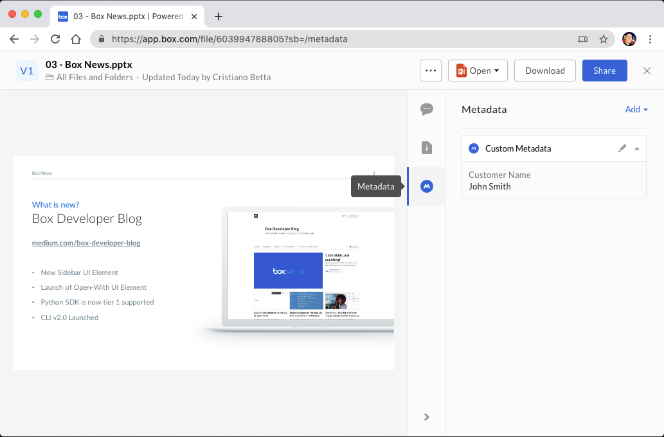
WebRun files outside documents into Box as a Viewer Uploader
The audit folder fills only when someone is signed in to the supplier portal and to Box at the same time. WebRun is an AI agent that works a real Chrome browser, signed in as you. In Box, its account can hold the Viewer Uploader role on the folders it files into.
The compliance officer is the one who invites the auditor to the finished folder. A Notion follow-up goes to a signer only when the contracts manager sends it, and folder owners decide which of their links to close. The ready-made Box jobs include the Box Sign chase and the shared-link audit, plus hospital jobs that file Verity audit evidence and Nuvolo equipment documents into Box.
Questions people ask
We are rebuilding our Box Relay workflows in Box Automate. What should stay out of them?
Jobs that start outside Box. Box Automate starts from something in Box, such as an upload, a classification, an approved task or a finished Sign request, or from a schedule. Downloading evidence from a claims portal or a supplier's site has no starting point in Box, so it stays with a person or the agent.
What can a Viewer Uploader do in Box?
Upload files, edit metadata, preview, download and comment, but not move, rename or delete items, or invite collaborators. It can still create shared links, so keep link changes out of the agent's instructions. Box offers the role to Business and Enterprise accounts, for folders only, once an admin enables it.
Does the agent's account need admin rights to read the Shared Links report?
No. When an admin schedules the Shared Links or Collaborations report, they can enter the agent's managed user in the Invite As Viewer field, and that user receives each run of the report.
Will our Box admin have to authorize an app for it?
There is nothing to authorize. Its account signs in to the Box web app the way an employee's does, so no custom app goes through the Developer Console or the Admin Console, and no token needs renewing. Anything it does, that user could do by hand.
Sources
- Differences Between Box Automate and Box Relay Box Automate replaces Box Relay; the workflow builder comes with Business plans, full branching and workflow sharing with Enterprise, and AI agents, Doc Gen and the Box Sign outcome with Enterprise Advanced.
- Creating workflows in Box Automate Lists Box Automate's triggers, including file and folder events, task events, File Request, Box Sign events and a daily, weekly or monthly schedule, and its outcomes, including the HTTPS connector.
- Enterprise Settings: Content & Sharing Tab Admin settings that disable shared links, or only public ones, after a chosen number of days and automatically remove invited collaborators (60 days by default); both apply only to links and collaborations created after the setting is turned on.
- Auto-Expiration of Shared Links Shared link auto-expiration is a Box Shield access policy set by classification, and applies only to links created or updated after the policy is in place.
- Sending a document for signature With Send automatic reminders ticked, Box Sign reminds signers 3, 6, 11 and 16 days after the request is sent; the sender chooses where the completed document is saved.
- Using Metadata Metadata is reserved for Business Plus, Enterprise, Enterprise Plus and Enterprise Advanced accounts.
- Box pricing Native security classifications and classification-based access policies are included from Enterprise up and come through the Box Shield add-on on Business and Business Plus; Box Governance is an optional add-on; e-sign requests come with every business plan.
- Understanding Collaborator Permission Levels A Viewer Uploader can upload, edit metadata and create shared links but cannot move, rename, delete or invite; the extra roles are for folders on Business and Enterprise accounts once an admin enables them.
- Running Reports Admin reports, including Shared Links, Collaborations and Box Sign, run on Business plans and above and are saved to the Box Reports folder.
- Subscribing Users to Reports Admins can subscribe managed users, entered in the Invite As Viewer field, to reports they run once or schedule, so those users receive each report as it is generated.
5 ready-made Box workflows
Each one names the apps it touches and the exact steps it takes. Open one to read what it will do, then turn it on.


Want one of these running on your own Box?
Show WebRun the process once and it will run it on schedule, in your own private browser environment.