Start every day with a clear technician dispatch brief
Each morning, WebRun opens ServiceM8, collects every job scheduled for today, groups them by assigned technician, logs the full list to a Google Sheet for records, and posts a clear dispatch digest to your Slack channel before the first van leaves.
- No credit card
- Under $0.01 per run
- Cancel anytime
What does WebRun do on every run?
The exact actions WebRun takes, in order - in plain language, so you can adjust anything.
-
WebRun signs in and gets to work
Opens
app.servicem8.comin a real browser with your saved login - no setup, no API keys. -
1
ServiceM8 - pull today's scheduled jobs
servicem8.com How to Automate ServiceM8

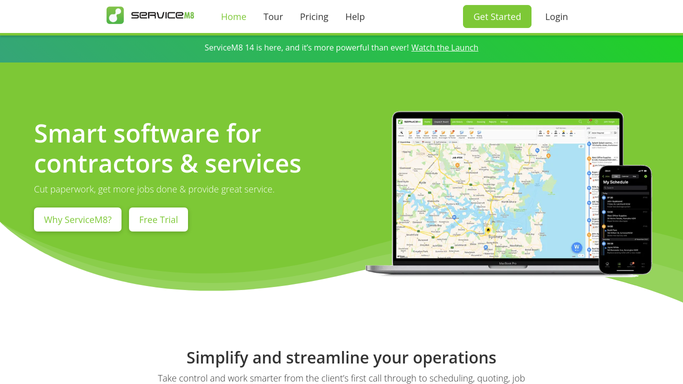
WebRun opens ServiceM8 to pull today's scheduled jobs. - Open ServiceM8 and navigate to today's Schedule view
- Capture every job for today including the customer name, address, appliance type, time window, and assigned technician
- Note any jobs marked urgent or that have open parts orders
Done when Every job scheduled for today is captured with its full details and technician assignment.
-
2
Google Sheets - log jobs to dispatch record
google.com How to Automate Google Sheets
WebRun opens Google Sheets to log jobs to dispatch record. - Open the daily dispatch log Google Sheet
- Append today's jobs as new rows with the date, technician, customer, address, and job type
- Flag any urgent or parts-pending jobs in the Notes column
Done when Today's jobs are logged in the dispatch Sheet for records and reporting.
-
3
Slack - post dispatch digest to team
slack.com How to Automate Slack
WebRun opens Slack to post dispatch digest to team. - Post a grouped dispatch digest to the operations Slack channel
- Organise the list by technician with each job's time window, customer name, and address
- Highlight urgent jobs and any that are awaiting parts at the top of the digest
Done when The team has today's grouped dispatch digest in Slack before the first job starts.


How do I automatically create a daily dispatch digest for my appliance repair team?
WebRun opens ServiceM8 each morning, collects every job scheduled for today, groups them by technician, logs the full list to a Google Sheet, and posts a clear dispatch digest to Slack before the first job starts. Urgent jobs and parts-pending visits are flagged at the top so dispatchers can act immediately.
- Every technician starts the day knowing their full schedule before leaving the depot
- Urgent jobs are surfaced first so nothing critical gets buried in the list
- A running Google Sheets log makes end-of-week reporting and payroll straightforward
Built for appliance repair dispatchers · field service managers · repair shop owners · operations teams
How is each run configured?
Secure by default
Connect once, stays signed in
WebRun signs in once and keeps each session in a persistent environment, so every run picks up right where it left off.
Every action is checked against this policy before it runs.
Questions, answered
Does this send anything to customers?
No. The dispatch digest is a purely internal summary posted to your Slack channel and logged in Google Sheets. No customer-facing messages are sent.
What if a job is added to the schedule after the digest runs?
The digest reflects the schedule as it stands at run time. For jobs added later, you can re-run the automation manually or your dispatcher can update Slack directly.
Can we keep the Google Sheets log for invoicing or payroll?
Yes. The Sheet appends a new row for each job every day, creating a running record you can use for end-of-week reporting, invoicing, or technician performance reviews.
Related templates
Put this on autopilot.
Turn it on in minutes - or have our team set it up for you.