Onboard every new client the same clean way
When a new client account is created in Amtelco, WebRun applies the standard onboarding checklist, schedules a kickoff call in Google Calendar with the assigned account manager, drafts a warm welcome email in Gmail summarizing next steps and leaves it unsent for review, and posts the onboarding team a Slack note that the client is ready to start.
- No credit card
- Under $0.01 per run
- Cancel anytime
What does WebRun do on every run?
The exact actions WebRun takes, in order - in plain language, so you can adjust anything.
-
WebRun signs in and gets to work
Opens
www.amtelco.comin a real browser with your saved login - no setup, no API keys. -
1
Amtelco - apply the standard onboarding checklist
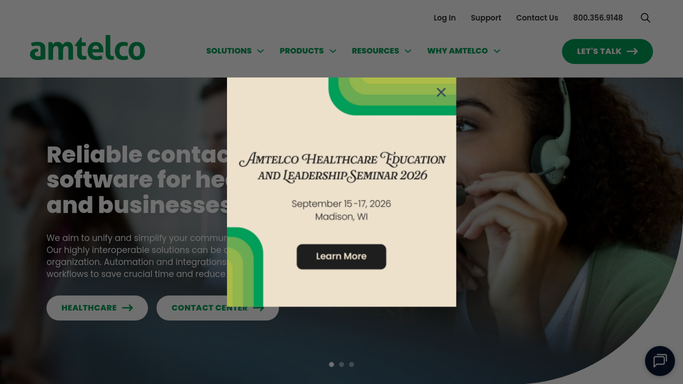
amtelco.com How to Automate Amtelco

WebRun opens Amtelco to apply the standard onboarding checklist. - Open the new client's account in Amtelco and confirm the core account details are filled in
- Apply the firm's standard onboarding checklist: script setup, on-call contacts, and escalation chain
- Note which items still need client input, such as their greeting wording or after-hours contact
Done when The new client's account has the standard checklist applied in Amtelco.
-
2
Google Calendar - schedule the kickoff call
calendar.google.com How to Automate Google Calendar
WebRun opens Google Calendar to schedule the kickoff call. - Find the assigned account manager's open slots in the next 3 business days
- Schedule a 30-minute kickoff call and add the client's confirmed contact as an attendee placeholder
Done when A kickoff call is on the calendar for the new client.
-
3
Gmail - draft the welcome email
gmail.com How to Automate Gmail
WebRun opens Gmail to draft the welcome email. - Draft a warm welcome email introducing the firm, the kickoff call time, and what the client still needs to provide
- Save it as a draft and leave it unsent for the account manager to review
Done when A welcome email sits ready as a draft in Gmail.
-
4
Slack - tell the onboarding team
slack.com How to Automate Slack
WebRun opens Slack to tell the onboarding team. - Post the onboarding team a note that the new client is ready to start, naming the account manager and the kickoff time
- Link the checklist items still waiting on the client
Done when The onboarding team has the new-client kickoff note in Slack.



How do I onboard a new answering service client automatically?
When a new client account is created in Amtelco, WebRun applies the firm's standard onboarding checklist, covering script setup, on-call contacts, and the escalation chain. It schedules a kickoff call in Google Calendar, drafts a welcome email in Gmail and leaves it unsent for review, and posts the onboarding team a Slack note, so every new client starts on the same clean checklist.
- Every new client starts on the same standard checklist, not whoever remembers it
- A kickoff call gets scheduled the same day the account is created
- The welcome email is ready to send instead of written from scratch each time
Built for answering services · virtual receptionist companies · medical answering services · telephone answering firms
How is each run configured?
Secure by default
Connect once, stays signed in
WebRun signs in once and keeps each session in a persistent environment, so every run picks up right where it left off.
Every action is checked against this policy before it runs.
Questions, answered
Will it email the new client without anyone checking?
No. WebRun drafts the welcome email in Gmail and leaves it unsent. The account manager reviews and sends it, so nothing reaches a new client unchecked.
What does the standard checklist actually set up?
It applies your firm's usual new-account items in Amtelco: script setup, on-call contacts, and the escalation chain, then flags whatever still needs the client's own input.
Does it book the kickoff call without confirming with the client?
It holds a slot on the account manager's calendar and drafts the invite details. Sending the actual invite to the client still goes through the account manager.
Related templates
Put this on autopilot.
Turn it on in minutes - or have our team set it up for you.