Automated Zoho Flow Failure Reporting
Every morning, WebRun opens Zoho Flow, reads the execution history for the last 24 hours across every active flow, captures each failed run with its flow name, error, and time, appends them to a Google Sheet, and updates the Notion status page so the team can see which automations are broken, how long they have been failing, and which ones ran clean.
How do I find out when an automation has stopped working?
WebRun opens Zoho Flow every morning and reads the last 24 hours of execution history across every active flow. It logs each failed run with its error and failing step to a Google Sheet, then updates the Notion status page showing which flows are healthy, failing, or silent.
- A broken automation is named the morning after it fails
- Flows that stopped triggering entirely stop hiding
- A 30 day failure log shows what breaks over and over
Built for operations teams · systems administrators · revenue operations · small business owners
What does WebRun do on every run?
The exact actions WebRun takes, in order - in plain language, so you can adjust anything.
-
WebRun signs in and gets to work
Opens
flow.zoho.comin a real browser with your saved login - no setup, no API keys. -
1
Zoho Flow - read the last day of executions
flow.zoho.com
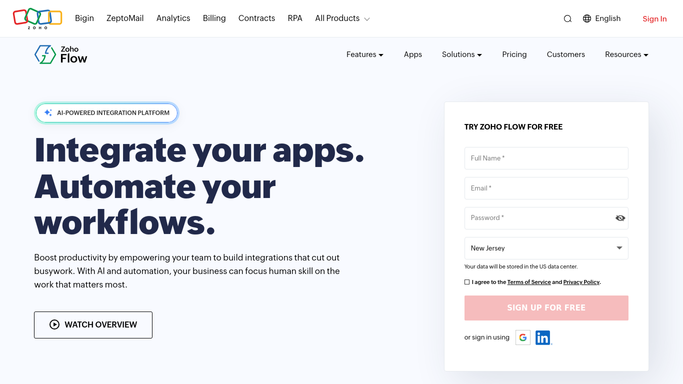
WebRun opens Zoho Flow to read the last day of executions. - Open Zoho Flow and go to the execution history for your workspace
- Set the range to the last 24 hours and list every run with its flow, status, and time
- Capture the error message and the failing step for each unsuccessful run
- Note flows that are switched on but have not run at all in the period
- Count successes and failures per flow so the failure rate is clear
Done when Every run in the last 24 hours is accounted for, with failures carrying their error and step.
-
2
Google Sheets - log every failed run
google.com

WebRun opens Google Sheets to log every failed run. - Open your automation log sheet and append one row per failed run
- Fill the date, the flow name, the failing step, the error message, and the run time
- Mark whether the same flow failed on previous days so repeat breakage is obvious
- Keep a summary tab with the failure count per flow for the last 30 days
Done when Every failed run from the period has a row and the 30 day summary is current.
-
3
Notion - update the automation status page
notion.so
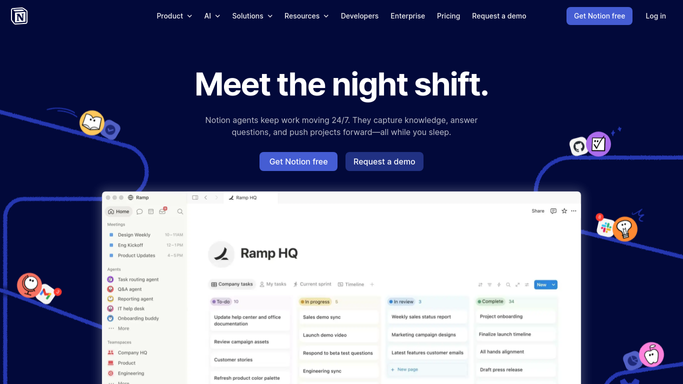
WebRun opens Notion to update the automation status page. - Open the automation status page in Notion
- Set each flow to healthy, failing, or idle based on this morning's read
- Show the last error, the failing step, and how many days it has been broken for anything failing
- List flows that are switched on but have not run, since a silent flow is the easiest to miss
- Leave the fixing to a person. Never edit, re-run, disable, or republish a flow
Done when The Notion status page shows today's health for every flow in the workspace.
How is each run configured?
Secure by default
Connect once, stays signed in
WebRun signs in once and keeps each session in a persistent environment, so every run picks up right where it left off.
Every action is checked against this policy before it runs.
Questions, answered
Will it re-run or fix a broken flow?
No. WebRun reads the execution history only. It never re-runs a failed execution, edits a flow, turns one off, or changes a connection. Every fix is made by a person with the error already in front of them.
Does it catch a flow that stopped triggering entirely?
Yes. A flow that is switched on but recorded no runs at all is listed as idle on the status page. Silent flows are the hardest failures to notice, so they get their own section.
How do I see whether something keeps breaking?
The Google Sheet keeps every failed run with its date and error, and the summary tab counts failures per flow over the last 30 days, so a flow failing every day looks different from a one-off.
Related templates
Put this on autopilot.
Turn it on in minutes - or have our team set it up for you.