Track revenue-based financial covenants and compliance conditions automatically
Every Monday, WebRun opens Leapfin to read current recognized-revenue and deferred-revenue totals, compares them to the revenue-based covenant thresholds logged in Google Sheets, calculates headroom or shortfall for each condition, and posts a compliance status update to your finance Slack channel so leadership can act before any covenant is breached.
- No credit card
- Under $0.01 per run
- Cancel anytime
What does WebRun do on every run?
The exact actions WebRun takes, in order - in plain language, so you can adjust anything.
-
WebRun signs in and gets to work
Opens
app.leapfin.comin a real browser with your saved login - no setup, no API keys. -
1
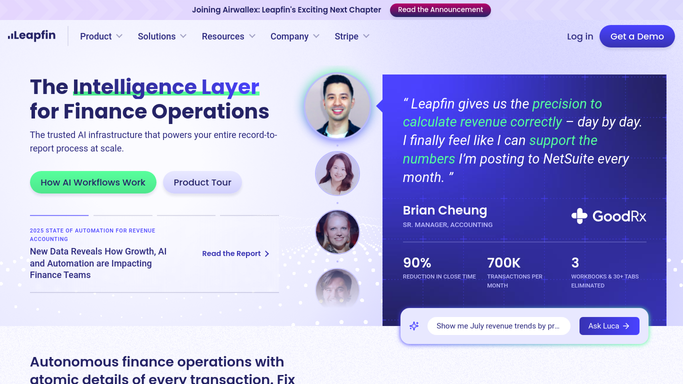
Leapfin - read current recognized revenue and deferred-revenue totals
leapfin.com How to Automate Leapfin

WebRun opens Leapfin to read current recognized revenue and deferred-revenue totals. - Open Leapfin and navigate to the revenue reporting dashboard
- Read current-period recognized revenue, cumulative year-to-date total, and current deferred-revenue balance
- Export or note any revenue adjustment or credit that affects the covenant calculation
Done when Current recognized revenue and deferred-balance figures are captured from Leapfin.
-
2
Google Sheets - compare totals to covenant thresholds and compute headroom
google.com How to Automate Google Sheets
WebRun opens Google Sheets to compare totals to covenant thresholds and compute headroom. - Open the financial covenant tracker in Google Sheets
- Update the current-period revenue figure for each active covenant row
- Calculate the headroom or shortfall for each threshold and flag any covenant where headroom is below 10%
Done when The covenant tracker is updated with current figures and headroom calculations for every active condition.
-
3
Slack - post covenant compliance status to finance leadership
slack.com How to Automate Slack
WebRun opens Slack to post covenant compliance status to finance leadership. - Post the weekly covenant compliance status to the finance leadership Slack channel
- Show each covenant with its threshold, current value, headroom, and a green or red status indicator
- Tag the CFO or controller for any covenant showing red or near-breach status
Done when Finance leadership has the weekly covenant compliance status in Slack.


How do I automatically track revenue-based financial covenants against recognized revenue?
WebRun opens Leapfin every Monday to read current recognized-revenue and deferred-revenue totals, compares them against your active covenant thresholds in Google Sheets, calculates headroom or shortfall for each condition, and posts a compliance status digest to your finance Slack channel. Leadership sees any near-breach covenant before the week's decisions are made.
- Near-breach revenue covenants surface on Monday, not at month-end
- Finance leadership sees live headroom for every active covenant each week
- Covenant thresholds and recognized revenue are always compared against the same Leapfin source of truth
Built for CFOs · controllers · SaaS finance directors · venture-backed finance teams
How is each run configured?
Secure by default
Connect once, stays signed in
WebRun signs in once and keeps each session in a persistent environment, so every run picks up right where it left off.
Every action is checked against this policy before it runs.
Questions, answered
Does it file any covenant compliance certificates automatically?
No. WebRun only reads revenue data and reports covenant status internally. Filing compliance certificates or notifying lenders is always a human action taken by your finance and legal teams.
How does it know what our covenant thresholds are?
You enter your covenant thresholds once into the Google Sheet covenant tracker during setup. WebRun reads those thresholds each Monday and compares them to the live Leapfin figures.
Can it track non-revenue covenants like liquidity or leverage ratios?
This template focuses on revenue-based conditions tied to Leapfin data. For liquidity or leverage covenants you would need to connect the relevant balance-sheet data source as a separate setup.
Related templates
Put this on autopilot.
Turn it on in minutes - or have our team set it up for you.