Understand which daypart drives your revenue and staff it accordingly
Every morning, WebRun opens TouchBistro, reads yesterday's sales split by daypart, captures net revenue, transaction count, and average check per period, and appends the results to Google Sheets so managers can see which hours drive the most revenue and adjust staffing or promotions accordingly.
- No credit card
- Under $0.01 per run
- Cancel anytime
What does WebRun do on every run?
The exact actions WebRun takes, in order - in plain language, so you can adjust anything.
-
WebRun signs in and gets to work
Opens
cloud.touchbistro.comin a real browser with your saved login - no setup, no API keys. -
1
TouchBistro - read sales by daypart
touchbistro.com How to Automate TouchBistro

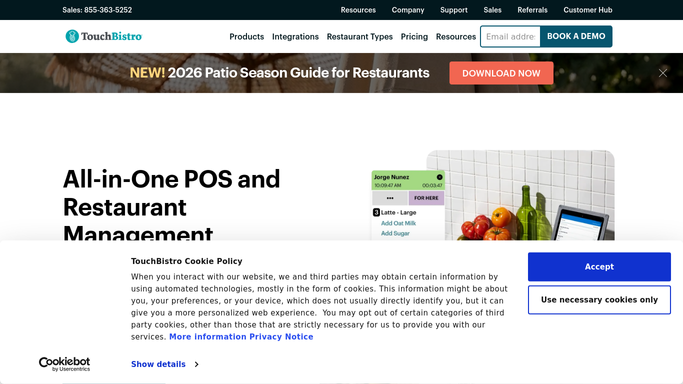
WebRun opens TouchBistro to read sales by daypart. - Open TouchBistro Cloud and navigate to Reports
- Select the Sales by Hour or Daypart report for yesterday
- Capture net revenue, transaction count, and average check for each defined daypart: breakfast, morning, lunch, afternoon, dinner, late
- Identify the highest-revenue and lowest-revenue daypart of the day
Done when Revenue, transaction count, and average check are captured for every daypart.
-
2
Google Sheets - log daypart performance data
google.com How to Automate Google Sheets
WebRun opens Google Sheets to log daypart performance data. - Open the Daypart Performance Google Sheet
- Append a dated row for each daypart with net revenue, transaction count, and average check
- Highlight the top-performing daypart in the summary column for the day
Done when Yesterday's daypart performance data is logged in the sheet with the top period highlighted.

How do I automatically track sales by daypart from TouchBistro?
WebRun reads your TouchBistro hourly sales every morning, segments them by daypart, and appends net revenue, transaction count, and average check per period to Google Sheets. Over time the sheet builds a performance trend that shows which hours drive the business so managers can staff up the right windows and target slow periods with promotions.
- Highest and lowest revenue dayparts are visible without manual report review
- Historical sheet reveals weekly and seasonal daypart patterns
- Managers match staffing levels to actual revenue windows
Built for QSR managers · restaurant owners · multi-unit operators · franchise area managers
How is each run configured?
Secure by default
Connect once, stays signed in
WebRun signs in once and keeps each session in a persistent environment, so every run picks up right where it left off.
Every action is checked against this policy before it runs.
Questions, answered
Can I define my own daypart windows?
Yes. During setup you tell WebRun your daypart boundaries, for example breakfast from 6:00 AM to 10:30 AM, and it slices the TouchBistro hourly data to match your definitions.
Does it contact customers or post anything publicly?
No. All output goes to your internal Google Sheet only. No customer-facing communication is triggered at any step.
How far back does the historical data go?
The sheet grows one row per day from the moment you activate the workflow. For historical data before that date, you can run a one-time backfill by giving WebRun a date range to pull from TouchBistro.
Related templates
Put this on autopilot.
Turn it on in minutes - or have our team set it up for you.