Reactivate patients who have not visited in over a year
Every Monday, WebRun opens ModMed, identifies active patients with no visit in the past 12 months, logs the lapsed patients in a Google Sheet, and drafts a warm reactivation email in Mailchimp for each one. Staff review every draft before any email is sent to a patient.
- No credit card
- Under $0.01 per run
- Cancel anytime
What does WebRun do on every run?
The exact actions WebRun takes, in order - in plain language, so you can adjust anything.
-
WebRun signs in and gets to work
Opens
www.modmed.comin a real browser with your saved login - no setup, no API keys. -
1
ModMed - find patients lapsed over 12 months
modmed.com How to Automate ModMed

WebRun opens ModMed to find patients lapsed over 12 months. - Open ModMed and filter the patient list for active patients whose last appointment was more than 12 months ago
- Exclude patients who are deceased, have a do-not-contact flag, or have a future appointment already scheduled
- Capture each patient's name, email address, last visit date, and primary complaint from their chart
Done when Every lapsed patient eligible for reactivation is identified with full contact details.
-
2
Google Sheets - log the reactivation list
google.com How to Automate Google Sheets
WebRun opens Google Sheets to log the reactivation list. - Open the Patient Reactivation tracking sheet
- Append a row for each lapsed patient with name, email, last visit date, and outreach status
- Set the status to 'Draft Pending' for each new entry
Done when All lapsed patients are logged in the tracking sheet with their reactivation status.
-
3
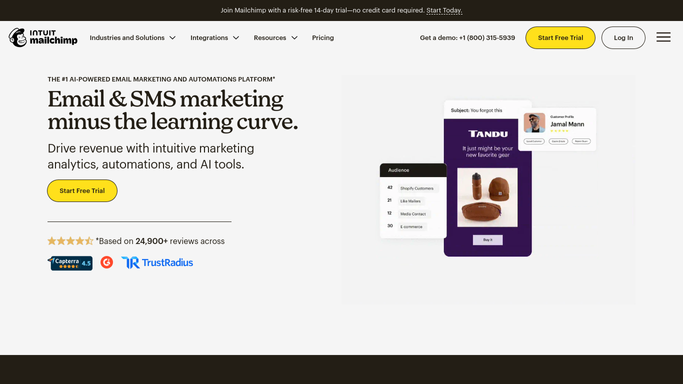
Mailchimp - draft reactivation emails
mailchimp.com How to Automate Mailchimp
WebRun opens Mailchimp to draft reactivation emails. - Draft a personalized reactivation email for each patient acknowledging the time since their last visit and inviting them to schedule a check-up
- Leave every email as a draft in Mailchimp and do not send until a staff member has reviewed and approved the batch
- Include an easy scheduling link or phone number in each draft
Done when Reactivation email drafts are queued in Mailchimp for every lapsed patient, none yet sent.


How do I automatically reactivate podiatry patients who have not visited in over a year?
Every Monday, WebRun reviews ModMed for patients who have not visited in over 12 months, logs them in a Google Sheet, and drafts a warm reactivation email in Mailchimp for each one. Staff approve every draft before anything is sent, helping the practice recover lapsed patients while keeping outreach compliant and personal.
- Lapsed patients are identified weekly with no manual chart pulling
- Reactivation emails reach patients who would otherwise never hear from the practice again
- Staff save hours each month on manual list-building and email drafting
Built for podiatry practices · podiatrists · foot and ankle clinics · practice managers
How is each run configured?
Secure by default
Connect once, stays signed in
WebRun signs in once and keeps each session in a persistent environment, so every run picks up right where it left off.
Every action is checked against this policy before it runs.
Questions, answered
Will it send reactivation emails to patients without anyone approving them first?
No. Every reactivation email is drafted in Mailchimp and left unsent. A staff member reviews the batch and approves each message before it is delivered to a patient.
How does it handle patients with do-not-contact preferences?
It reads ModMed flags before building the list and excludes any patient marked do-not-contact, deceased, or with a future appointment already on the books.
Can we control the tone and wording of the reactivation email?
Yes. Provide WebRun with a preferred template or sample message and it will use that style for every draft, keeping the communication warm and consistent with your practice's voice.
Related templates
Put this on autopilot.
Turn it on in minutes - or have our team set it up for you.