Schedule meet-and-greet appointments without the back-and-forth
When a new client inquiry lands in Scout, WebRun reads the pet details and requested services, checks your Google Calendar for open slots, drafts a personalised meet-and-greet scheduling email with available times, and queues it in Gmail for your approval before it reaches the client.
- No credit card
- Under $0.01 per run
- Cancel anytime
What does WebRun do on every run?
The exact actions WebRun takes, in order - in plain language, so you can adjust anything.
-
WebRun signs in and gets to work
Opens
scoutforpets.comin a real browser with your saved login - no setup, no API keys. -
1
Scout - read new client inquiry
scoutforpets.com

WebRun opens Scout to read new client inquiry. - Open Scout and find the latest new client inquiry
- Capture the client name, pet name, breed, requested service, and any notes
- Note the preferred contact method and availability hints if provided
Done when New client inquiry details and pet information are captured.
-
2
Google Calendar - check available slots
calendar.google.com How to Automate Google Calendar
WebRun opens Google Calendar to check available slots. - Open Google Calendar and review free slots in the next 5 business days
- Identify 2 to 3 suitable 30-minute windows for a meet-and-greet
- Check that no existing visits or personal blocks overlap those windows
Done when Two to three candidate meet-and-greet time slots are identified.
-
3
Gmail - draft scheduling email for review
gmail.com How to Automate Gmail
WebRun opens Gmail to draft scheduling email for review. - Draft a warm welcome email to the new client using their name and pet name
- Offer the 2 to 3 available time slots for a meet-and-greet
- Include a brief intro to your services and a prompt to confirm a time
- Leave the draft unsent for your review before sending
Done when A meet-and-greet scheduling draft is ready in Gmail for your approval.
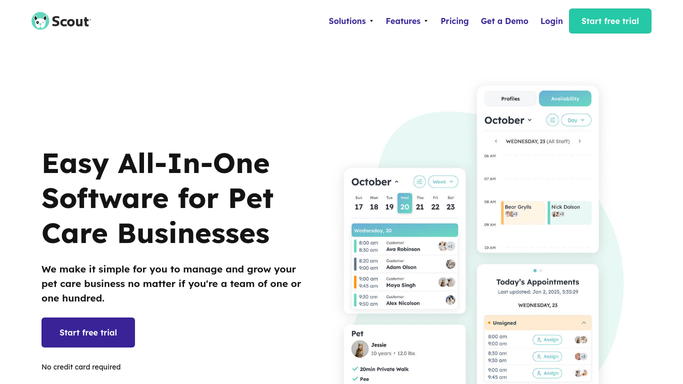


How do I automatically schedule meet-and-greet appointments with new pet-sitting clients?
WebRun picks up each new client inquiry in Scout, reads the pet and service details, checks your Google Calendar for open slots, and drafts a personalised meet-and-greet scheduling email with 2 to 3 available times. The draft waits in Gmail for your review, so you control exactly what a new client sees before they book.
- New client inquiries get a scheduling draft ready within minutes
- Available times are pulled from live calendar data, no double-booking
- No scheduling email goes to a client without your sign-off
Built for pet sitters · dog walkers · pet sitting businesses · pet care providers
How is each run configured?
Secure by default
Connect once, stays signed in
WebRun signs in once and keeps each session in a persistent environment, so every run picks up right where it left off.
Every action is checked against this policy before it runs.
Questions, answered
Will it send the scheduling email to the new client automatically?
No. WebRun prepares the draft and leaves it in Gmail for your review. You send it when you are satisfied with the message and the offered time slots.
How does it know which calendar slots are free?
It reads your Google Calendar live each time a new inquiry arrives and only offers windows that have no existing events or blocks.
What if I use a different scheduling tool instead of Google Calendar?
The workflow currently reads availability from Google Calendar. If you use another calendar, connect it to Google Calendar sync or contact support to adapt the workflow.
Related templates
Put this on autopilot.
Turn it on in minutes - or have our team set it up for you.