Turn a full inbox into a short list of real tasks
Every morning, WebRun signs into Mail.ru, reads the unread messages that arrived since the last run, separates the ones that genuinely need an action from newsletters and notifications, opens a Trello card for each real task with the sender and the ask, and writes the day's triage summary into Notion.
- No credit card
- Under $0.01 per run
- Cancel anytime
How do I turn my email inbox into a task list every morning?
WebRun signs into Mail.ru each morning and reads the messages that arrived overnight, separating real asks from newsletters and notifications. It opens a Trello card for every email that needs an action, titled by the ask, then writes the day's triage summary into your Notion log.
- The morning starts with a task list instead of an inbox
- Emails with named deadlines are carded with a due date
- Nothing is replied to, archived, or deleted without you
Built for small business owners · consultants · operations teams · busy professionals
What does WebRun do on every run?
The exact actions WebRun takes, in order - in plain language, so you can adjust anything.
-
WebRun signs in and gets to work
Opens
e.mail.ruin a real browser with your saved login - no setup, no API keys. -
1
Mail.ru - read and sort the new mail
mail.ru
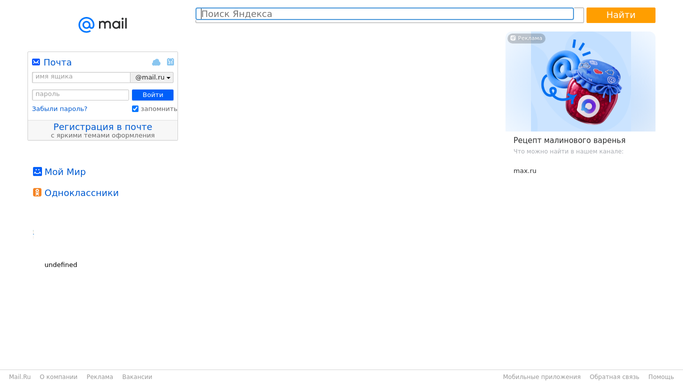
WebRun opens Mail.ru to read and sort the new mail. - Sign into Mail.ru and open the inbox
- Read messages that arrived since the last run
- Sort each into needs an action, needs reading, or no action, using the sender and the ask
- Capture the sender, subject, date, and a one-line description of what is being asked
- Read only. Never reply, forward, archive, or delete a message
Done when Every new message is sorted and the actionable ones are described in one line.
-
2
Trello - open a card per real task
trello.com How to Automate Trello
WebRun opens Trello to open a card per real task. - Open your inbox triage board
- Create a card for each message that needs an action, titled with the ask and not the subject line
- Put the sender, the date, and the one-line description in the card
- Set a due date when the email names a deadline
- Skip messages that already have a card from an earlier run
Done when Every actionable email has exactly one card on the board.
-
3
Notion - log the triage summary
notion.so How to Automate Notion
WebRun opens Notion to log the triage summary. - Open your Notion daily log page
- Write today's triage summary: total new messages, how many needed action, and the new card titles
- List anything with a named deadline first
- Note senders who appeared several times so recurring asks are visible
Done when Today's triage summary is written into the Notion log.
How is each run configured?
Secure by default
Connect once, stays signed in
WebRun signs in once and keeps each session in a persistent environment, so every run picks up right where it left off.
Every action is checked against this policy before it runs.
Questions, answered
Will it reply to my email?
No. WebRun reads the inbox and writes nothing back to it. It never replies, forwards, archives, or deletes a message, so every response stays yours to write and send.
How does it tell a task from a newsletter?
By the sender and the ask. Marketing sends, receipts, and system notifications are counted but not carded, while a message asking a question or naming a deadline becomes a card.
Will the same email create a card every day?
No. WebRun checks the board before writing, so a message that already has a card is skipped and only genuinely new asks create cards.
Related templates
Put this on autopilot.
Turn it on in minutes - or have our team set it up for you.