Turn a pile of open-ended feedback into themes
Hand over the survey or review export and WebRun opens Gemini, feeds the free-text answers through in batches, groups them into named themes with a count and example quotes for each, writes one row per theme to Airtable, and drafts a Gmail summary so the findings leave the chat window as something you can act on.
- No credit card
- Under $0.01 per run
- Cancel anytime
How do I group open-ended survey answers into themes with counts?
Upload your survey or review export and WebRun works through the free-text answers in Google Gemini, grouping them into named themes with a count and example quotes for each. It writes one row per theme to Airtable and drafts a Gmail summary, so the findings land somewhere usable instead of a chat window.
- Free-text answers come back as named themes with counts
- Every theme is grounded in verbatim quotes
- Unclassified answers are kept and counted, not hidden
Built for product managers · researchers · HR teams · customer experience leads
What does WebRun do on every run?
The exact actions WebRun takes, in order - in plain language, so you can adjust anything.
-
WebRun signs in and gets to work
Opens
gemini.google.comin a real browser with your saved login - no setup, no API keys. -
1
Google Gemini - group the answers into themes
gemini.google.com
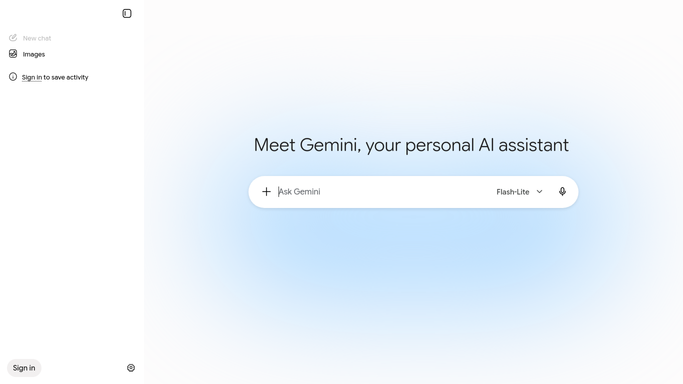
WebRun opens Google Gemini to group the answers into themes. - Open Gemini and start a fresh chat for this analysis
- Paste the feedback answers into the chat and ask for the recurring themes across all of them
- Work in batches so long files are read in full rather than truncated
- Ask for a count of answers behind each theme and two or three verbatim quotes
- Ask it to name any answer that fits no theme rather than forcing it into one
- Reconcile the batches into one theme list with combined counts
Done when Every uploaded answer is either inside a named theme or listed as unclassified.
-
2
Airtable - write one row per theme
airtable.com How to Automate Airtable
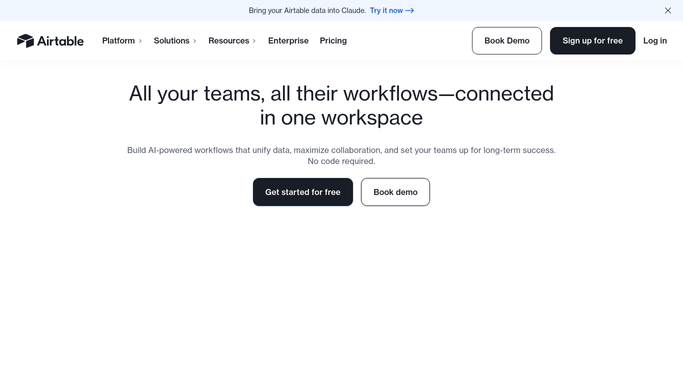
WebRun opens Airtable to write one row per theme. - Write one row per theme with its name, count, and share of total answers
- Attach the example quotes to each theme row
- Add a row holding the unclassified answers so nothing disappears
- Record the source file name and the date so a later round can be compared
Done when Airtable holds the full theme table with counts, quotes, and the unclassified block.
-
3
Gmail - draft the summary for sharing
gmail.com How to Automate Gmail

WebRun opens Gmail to draft the summary for sharing. - Write a short summary leading with the three largest themes and their counts
- Include one quote per theme so the finding is grounded in a real answer
- Note how many answers could not be classified
- Save it as a draft in Gmail for you to review before it goes to anyone
Done when A drafted summary of the themes is waiting in Gmail.
How is each run configured?
Secure by default
Connect once, stays signed in
WebRun signs in once and keeps each session in a persistent environment, so every run picks up right where it left off.
Every action is checked against this policy before it runs.
Questions, answered
Will it email the summary to my team?
No. WebRun saves the summary as a Gmail draft for you to read first. You decide who sees it and whether the wording is right before anything is sent.
What happens to answers that fit no theme?
They are listed separately in their own Airtable block and counted in the summary. Nothing is forced into a theme to make the numbers look tidy, so you can read the odd ones yourself.
Does it handle a long file?
Yes. The answers go through Gemini in batches and the theme lists are then reconciled into one table with combined counts, so a long export is read in full rather than cut off partway.
Related templates
Put this on autopilot.
Turn it on in minutes - or have our team set it up for you.