Collect post-event feedback without chasing attendees
Every night, WebRun finds events that ended today on Eventbrite, creates a draft Mailchimp survey campaign for checked-in attendees asking for their feedback, and logs each attendee in a Google Sheet ready to track responses.
- No credit card
- Under $0.01 per run
- Cancel anytime
What does WebRun do on every run?
The exact actions WebRun takes, in order - in plain language, so you can adjust anything.
-
WebRun signs in and gets to work
Opens
www.eventbrite.com/organizations/eventsin a real browser with your saved login - no setup, no API keys. -
1
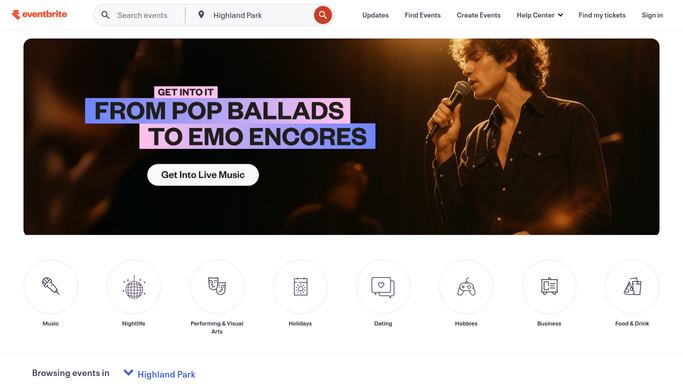
Eventbrite - pull checked-in attendees
eventbrite.com

WebRun opens Eventbrite to pull checked-in attendees. - Open Eventbrite and find events that ended today
- Download the check-in list for each event with attendee names and emails
- Note the event name and date to personalise the feedback request
Done when Every checked-in attendee from today's events is captured with their contact details.
-
2
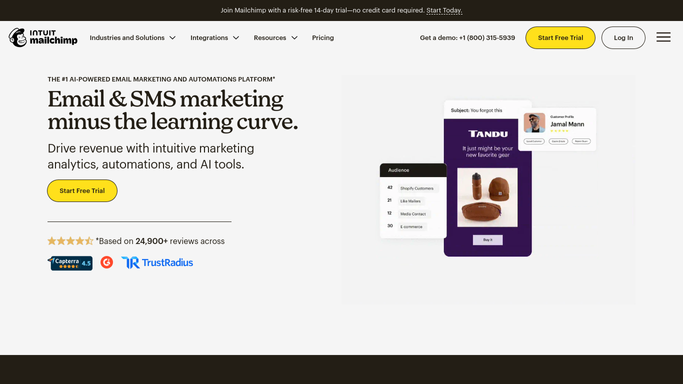
Mailchimp - draft feedback request campaign
mailchimp.com How to Automate Mailchimp
WebRun opens Mailchimp to draft feedback request campaign. - Create a Draft campaign in Mailchimp addressed to the checked-in attendee segment
- Include a short personalised note referencing the event name, a star-rating prompt, and an open-comment link
- Leave the campaign as a Draft - do not send or schedule until you approve
Done when A feedback campaign draft is staged in Mailchimp for each event, ready for your approval.
-
3
Google Sheets - log attendees for response tracking
google.com How to Automate Google Sheets
WebRun opens Google Sheets to log attendees for response tracking. - Open your event feedback tracker spreadsheet
- Add a new section for today's event with each attendee's name, email, and feedback status set to Pending
- This sheet will be used to log responses once the campaign is sent
Done when All attendees are logged in the tracker with Pending feedback status.

How can I automatically collect feedback from event attendees?
Every night, WebRun checks Eventbrite for events that ended that day, creates a draft Mailchimp feedback survey campaign for every attendee who checked in, and logs each attendee in a Google Sheet - so you gather post-event insights without manually emailing anyone.
- Every checked-in attendee receives a feedback request the same night
- Response tracking logged automatically in Google Sheets
- Survey campaigns are drafted for review before sending
Built for event planners · conference organisers · venue managers · community leaders
How is each run configured?
Secure by default
Connect once, stays signed in
WebRun signs in once and keeps each session in a persistent environment, so every run picks up right where it left off.
Every action is checked against this policy before it runs.
Questions, answered
Will it send the feedback email to attendees automatically?
No. The Mailchimp campaign is staged as a Draft. You review it and click Send yourself - attendees receive nothing until you approve.
What kind of feedback form does it use?
It links to a form you specify - Typeform, Google Forms, or any URL. Provide your form link in the plan and it will include it in every feedback request.
Can it track which attendees have responded?
The Google Sheet logs every attendee as Pending. Once you connect your form tool, you can update the Status column manually or via a separate automation.
Related templates
Put this on autopilot.
Turn it on in minutes - or have our team set it up for you.