Chase overdue electrical invoices without the awkward calls
Every Monday, WebRun checks Service Fusion and QuickBooks for overdue electrical invoices, drafts a polite reminder email for each customer, and posts the chase list to Slack so your office team knows exactly who still owes and how much.
- No credit card
- Under $0.01 per run
- Cancel anytime
What does WebRun do on every run?
The exact actions WebRun takes, in order - in plain language, so you can adjust anything.
-
WebRun signs in and gets to work
Opens
app.servicefusion.comin a real browser with your saved login - no setup, no API keys. -
1
Service Fusion - find overdue invoices
servicefusion.com How to Automate Service Fusion

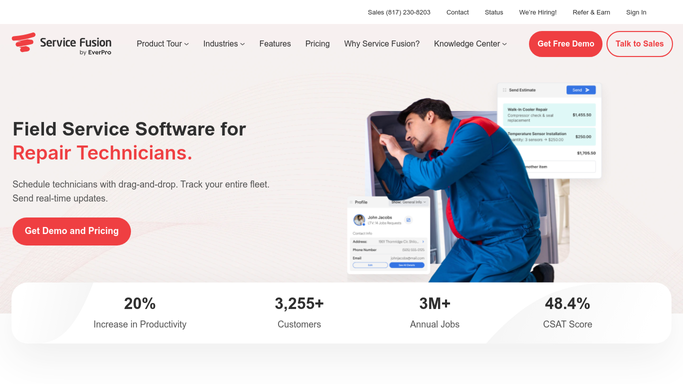
WebRun opens Service Fusion to find overdue invoices. - Open Service Fusion and filter invoices to status Overdue or past due date
- Capture the customer name, job address, invoice number, amount, and days overdue for each
- Skip invoices already sent a reminder in the past 7 days
Done when Every overdue invoice is listed with its customer and balance details.
-
2
QuickBooks - confirm balances outstanding
- Cross-check each overdue invoice against QuickBooks to confirm the balance has not been paid or credited since the last sync
- Update the amount owed if there is a partial payment on record
Done when Balances are confirmed current in QuickBooks before drafting reminders.
-
3
Gmail - draft payment reminders
gmail.com How to Automate Gmail
WebRun opens Gmail to draft payment reminders. - Draft a polite, on-brand payment reminder for each customer referencing the invoice number, job description, and amount due
- For balances under your auto-approve threshold, leave the draft ready for quick review
- For larger balances, add a note flagging that a personal call may be more appropriate
- Never send any reminder email automatically
Done when A Gmail draft exists for every overdue invoice on this week's list.
-
4
Slack - report the chase list
slack.com How to Automate Slack
WebRun opens Slack to report the chase list. - Post a summary of all overdue invoices to the billing channel with customer name, amount, and days overdue
- Sort by amount descending so the largest balances appear first
- Confirm that Gmail drafts are ready for review
Done when Your team has this week's overdue invoice chase list in Slack.


How do I automatically follow up on overdue electrical invoices?
WebRun pulls overdue electrical invoices from Service Fusion every Monday, confirms each balance in QuickBooks, and drafts polite payment reminder emails in Gmail for your team to review. It posts the full chase list to Slack sorted by amount, so your office resolves outstanding balances faster without uncomfortable cold calls.
- Overdue balances are flagged and drafted for follow-up every Monday without manual review
- Largest outstanding invoices surface first so cash flow is protected
- Cross-checking with QuickBooks prevents reminders to customers who already paid
Built for electrical contractors · electrical service companies · commercial electricians · electrical business owners
How is each run configured?
Secure by default
Connect once, stays signed in
WebRun signs in once and keeps each session in a persistent environment, so every run picks up right where it left off.
Every action is checked against this policy before it runs.
Questions, answered
Will it send payment reminder emails to customers without my approval?
No. Every reminder is saved as a Gmail draft for your team to review first. Nothing is sent to a customer until a staff member approves and clicks Send.
What if a customer has already paid since the last sync?
WebRun checks the live balance in QuickBooks before drafting any reminder, so customers who have already settled their account are skipped automatically.
Can it handle invoices from both Service Fusion and QuickBooks?
Yes. It pulls the overdue list from Service Fusion and cross-checks balances in QuickBooks, so you get one unified chase list even if the two systems are not perfectly in sync.
Related templates
Put this on autopilot.
Turn it on in minutes - or have our team set it up for you.