Qualify and route new dumpster rental inquiries
When a new inquiry lands, WebRun opens Starlight Software, reads the project type, container size requested, and service address, scores the lead by job value and coverage zone, logs the result to a Google Sheet, and pings the right sales rep in Slack with a one-line brief.
- No credit card
- Under $0.01 per run
- Cancel anytime
What does WebRun do on every run?
The exact actions WebRun takes, in order - in plain language, so you can adjust anything.
-
WebRun signs in and gets to work
Opens
www.starlightsoftwaresolutions.comin a real browser with your saved login - no setup, no API keys. -
1
Starlight Software - read new inquiry details
starlightsoftwaresolutions.com How to Automate Starlight Software

WebRun opens Starlight Software to read new inquiry details. - Open Starlight Software and locate the newest unprocessed customer inquiry
- Read the project type, container size requested, service zip code, and estimated job duration
- Calculate a lead score based on job value tier and whether the zip code is in an active service zone
Done when Every new inquiry has been read and scored.
-
2
Google Sheets - log lead with score
google.com How to Automate Google Sheets
WebRun opens Google Sheets to log lead with score. - Open the lead-tracking Google Sheet
- Append a new row with the customer name, project type, container size, zip code, score, and timestamp
- Mark the routing status as Pending until a rep claims it
Done when The lead is logged with its score in the tracking sheet.
-
3
Slack - alert the right sales rep
slack.com How to Automate Slack
WebRun opens Slack to alert the right sales rep. - Identify the rep assigned to that service zone
- Post a brief in the sales channel: customer name, project type, container size, score, and a link to the Starlight record
- Leave the message for the rep to claim. Do not contact the customer.
Done when The assigned rep has been alerted in Slack with the lead brief.
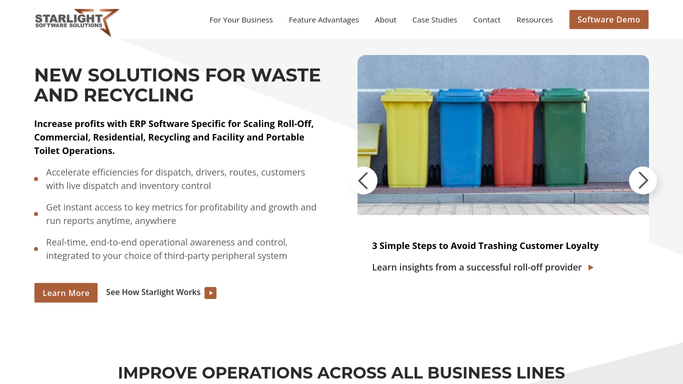


How can I automatically qualify and route new dumpster rental inquiries?
WebRun reads every new dumpster rental inquiry in Starlight Software, scores it by project size and service zone, logs it to Google Sheets, and pings the right sales rep in Slack within minutes. No inquiry sits unrouted, and no rep wastes time on leads outside their zone.
- Every new inquiry is scored and routed in minutes, not hours
- No lead sits unassigned or falls through the cracks
- Out-of-zone inquiries are flagged automatically for a rep to review
Built for roll-off dumpster rental companies · waste haulers · dumpster rental sales teams
How is each run configured?
Secure by default
Connect once, stays signed in
WebRun signs in once and keeps each session in a persistent environment, so every run picks up right where it left off.
Every action is checked against this policy before it runs.
Questions, answered
Will it contact the customer directly?
No. WebRun only posts an internal Slack alert to your sales rep. All customer communication stays with your team and is never triggered automatically.
How does it decide which rep to route to?
It matches the inquiry's service zip code against the zone assignments you configure. You update the routing table in Google Sheets and WebRun reads it on every run.
What if the zip code is outside our service area?
WebRun flags it as out-of-zone in the sheet and posts a note in Slack so a rep can decide whether to follow up or decline.
Related templates
Put this on autopilot.
Turn it on in minutes - or have our team set it up for you.