Translate every new document for you
Every morning, WebRun checks a Google Drive folder for documents that have not been translated yet, runs each one through DeepL into the languages you chose, saves the translated files back into a matching subfolder, and posts your team a short Slack summary of what was translated.
- No credit card
- Under $0.01 per run
- Cancel anytime
How do I translate new documents automatically from a shared folder?
WebRun translates your new documents every morning. It checks a Google Drive folder for files added since the last run, translates each one in DeepL into the target languages you chose, saves the translated copies back to Drive, and posts a short Slack summary, so nobody uploads documents by hand.
- New documents are translated the morning after they land
- Every translation is filed in Drive next to its source
- Failed files are flagged instead of quietly skipped
Built for localization teams · agencies · legal teams · international sales teams
What does WebRun do on every run?
The exact actions WebRun takes, in order - in plain language, so you can adjust anything.
-
WebRun signs in and gets to work
Opens
deepl.comin a real browser with your saved login - no setup, no API keys. -
1
Google Drive - collect new source documents
drive.google.com How to Automate Google Drive

WebRun opens Google Drive to collect new source documents. - Open the Drive folder you nominated as the translation inbox
- List files added or modified since the last run
- Skip anything that already has a translated copy in the output subfolder
- Download each pending file ready for translation
Done when Every untranslated document in the inbox folder has been collected.
-
2
DeepL - translate into your target languages
deepl.com
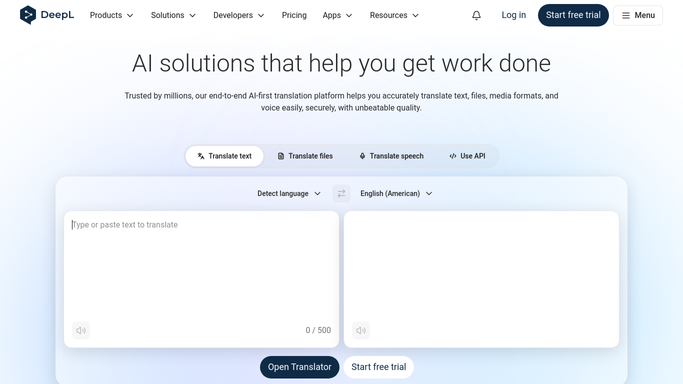
WebRun opens DeepL to translate into your target languages. - Open DeepL and switch to document translation
- Upload each pending file and set the target language for this run
- Wait for the translation to finish and download the translated file
- Repeat for every target language on your list, then save each translated copy back into the Drive output subfolder
Done when Each source document has a translated file for every target language you set.
-
3
Slack - report what was translated
slack.com How to Automate Slack

WebRun opens Slack to report what was translated. - Post a short summary listing each document, its target languages, and a link to the translated file
- Flag any file DeepL could not process so a human can handle it
- Keep the post internal. Nothing is sent to a client or published
Done when Your team has today's translation summary in Slack.
How is each run configured?
Secure by default
Connect once, stays signed in
WebRun signs in once and keeps each session in a persistent environment, so every run picks up right where it left off.
Every action is checked against this policy before it runs.
Questions, answered
Will it send the translations to clients?
No. WebRun only saves translated files back to your Google Drive folder and posts an internal Slack summary. Anything that would go to a client stays for a human to send.
How does it avoid translating the same file twice?
It checks the output subfolder in Drive before every run and skips any source document that already has a translated copy for that language.
Which languages does it produce?
The ones you list at setup. WebRun repeats the DeepL document translation for each target language and files every version separately in Drive.
Related templates
Put this on autopilot.
Turn it on in minutes - or have our team set it up for you.