Export your CVS orders for the expense report
Every Monday, WebRun opens CVS, reads the order history for the past week, captures each order's date, items, status, delivery method, and total, books a Google Calendar slot to file the expense claim, and posts the itemised summary with the weekly total to Telegram.
- No credit card
- Under $0.01 per run
- Cancel anytime
How do I export my CVS orders for an expense report?
WebRun reads your CVS order history every Monday and captures the past week's orders with their date, items, delivery method, status, and total. It books a Google Calendar slot to file the expense claim and posts the itemised summary with the weekly total to Telegram.
- The expense claim is filed without digging through order history
- One itemised list with the weekly total already added up
- Pending and cancelled orders kept out of the claim
Built for office managers · small business owners · practice administrators · team assistants
What does WebRun do on every run?
The exact actions WebRun takes, in order - in plain language, so you can adjust anything.
-
WebRun signs in and gets to work
Opens
cvs.comin a real browser with your saved login - no setup, no API keys. -
1
CVS - read the week's orders
cvs.com
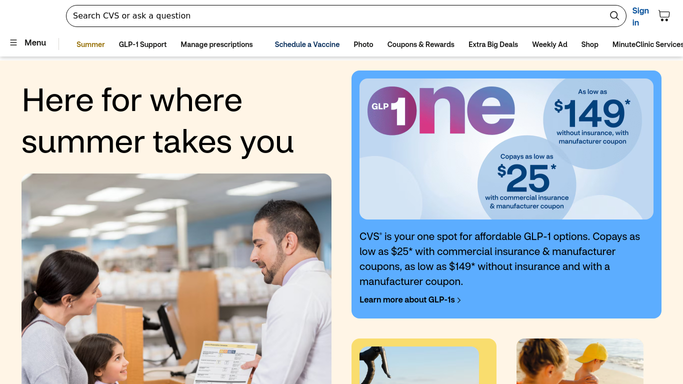
WebRun opens CVS to read the week's orders. - Open CVS and go to your order history
- Collect every order placed in the last seven days
- Capture the order date, order number, items, delivery or pickup method, and order total
- Note the status of each order and flag any still pending or cancelled
Done when Every order from the past week is listed with its items and total.
-
2
Google Calendar - book the filing slot
calendar.google.com How to Automate Google Calendar

WebRun opens Google Calendar to book the filing slot. - Book a short slot to file this week's expense claim
- Put the order count and the weekly total in the event description
- Keep the event on your own calendar with no invites sent to anyone else
Done when Time is booked to file the claim with the totals attached.
-
3
Telegram - post the spend summary
telegram.org How to Automate Telegram

WebRun opens Telegram to post the spend summary. - Post the week's orders to your office channel, newest first
- Show date, order number, items, and total on each line, then the weekly total
- List pending and cancelled orders separately so they are not claimed early
- Leave placing and paying for orders to your team. WebRun never buys anything
Done when The week's purchases and total are in Telegram ready to claim.
How is each run configured?
Secure by default
Connect once, stays signed in
WebRun signs in once and keeps each session in a persistent environment, so every run picks up right where it left off.
Every action is checked against this policy before it runs.
Questions, answered
Will it place an order or pay for anything?
No. WebRun only reads your order history and reports what was already bought. It never adds to a cart, places an order, or uses a saved payment method.
Does it submit my expense claim?
No. It gathers the orders and totals and books time on your calendar to file them. Submitting the claim stays with you, so nothing goes to finance without a person checking it.
What about orders that are still pending?
They are listed in a separate section rather than counted in the weekly total, so a claim is never filed against an order that has not completed or was cancelled.
Related templates
Put this on autopilot.
Turn it on in minutes - or have our team set it up for you.