Set up every new developer the same way
When a new developer is added to your roster, WebRun opens Cursor, checks whether the team plan has a spare seat, prepares the invitation and leaves it for the lead to send, notes which shared team settings the joiner needs, posts the setup checklist to Microsoft Teams, and pings the lead on Telegram.
- No credit card
- Under $0.01 per run
- Cancel anytime
How do I onboard a new developer onto our Cursor team plan?
When a developer joins, WebRun opens Cursor, checks the team plan for a free seat, and fills in the invitation without sending it. It posts the setup checklist and shared settings to Microsoft Teams and pings the lead on Telegram to approve, so every joiner starts the same way with no surprise seat.
- Every joiner gets the same setup, in the same order
- No invite is sent and no seat is billed without a human approving
- A missing seat is flagged before day one, not after
Built for engineering leads · IT admins · startup founders · developer experience teams
What does WebRun do on every run?
The exact actions WebRun takes, in order - in plain language, so you can adjust anything.
-
WebRun signs in and gets to work
Opens
cursor.comin a real browser with your saved login - no setup, no API keys. -
1
Cursor - prepare the seat and invite
cursor.com
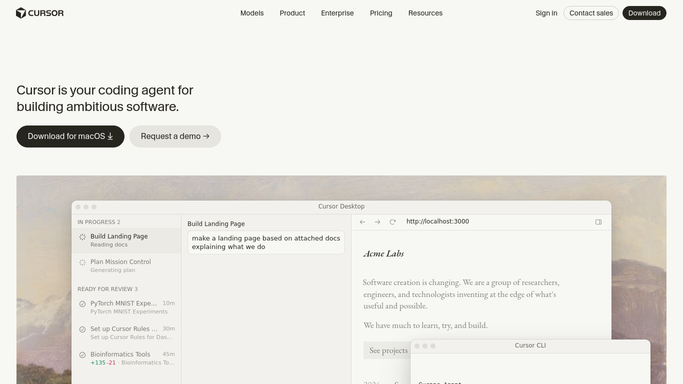
WebRun opens Cursor to prepare the seat and invite. - Open Cursor and go to the team members list
- Check whether a seat is free or a new one has to be added
- Confirm the joiner is not already a member from a previous run
- Fill in the invitation with the joiner's work email and the right role, then leave it unsent for the lead to approve
- Note the shared team settings and usage limits the joiner should be pointed at
Done when A seat is confirmed and the invitation is prepared but not sent.
-
2
Microsoft Teams - post the setup checklist
microsoft.com How to Automate Microsoft Teams

WebRun opens Microsoft Teams to post the setup checklist. - Post the joiner's setup checklist to the engineering channel
- List the seat status, the role on the invite, and the shared settings to walk them through
- Flag it clearly if the plan has no free seat, so a seat is added before day one
Done when The engineering channel has this joiner's setup checklist.
-
3
Telegram - ping the lead to send it
telegram.org How to Automate Telegram

WebRun opens Telegram to ping the lead to send it. - Ping the engineering lead that the invite is ready to send
- Say whether a seat was free and what still needs a decision
- Keep the message internal. WebRun never contacts the joiner directly
Done when The lead knows there is an invite waiting on their approval.
How is each run configured?
Secure by default
Connect once, stays signed in
WebRun signs in once and keeps each session in a persistent environment, so every run picks up right where it left off.
Every action is checked against this policy before it runs.
Questions, answered
Will it send the invitation on its own?
No. WebRun fills the invitation in and leaves it unsent. The lead approves and sends it, so nobody gets added to a paid plan without a person deciding.
What if the team plan has no free seat?
WebRun flags that in the Teams checklist and the Telegram ping before day one, rather than quietly adding a billable seat on your behalf.
Does it stop the same person being invited twice?
Yes. It checks the current member list first and skips anyone already on the team or already holding a pending invitation.
Related templates
Put this on autopilot.
Turn it on in minutes - or have our team set it up for you.