Launch a new product across every store without missing a step
When you add a new SKU to PDI Technologies, WebRun creates a structured launch checklist covering pricebook entry, planogram placement, staff notification, and initial order creation. It tracks completion status per site in a Google Sheet, drafts a customer-facing launch announcement for Mailchimp for your approval, and keeps the sheet updated until every location confirms the product is live on shelf.
- No credit card
- Under $0.01 per run
- Cancel anytime
What does WebRun do on every run?
The exact actions WebRun takes, in order - in plain language, so you can adjust anything.
-
WebRun signs in and gets to work
Opens
pditechnologies.com/increase-productivity/erp-back-officein a real browser with your saved login - no setup, no API keys. -
1
PDI Technologies - confirm new SKU is set up in pricebook and inventory
pditechnologies.com How to Automate PDI Technologies

WebRun opens PDI Technologies to confirm new SKU is set up in pricebook and inventory. - Open PDI Technologies and navigate to the Item master to confirm the new SKU is entered with barcode, cost, retail price, and category
- Verify the item is included in the active pricebook and assigned to the correct tax class
- Create a purchase order for each location's initial stock quantity
- Confirm vendor and lead time are recorded on the item record
Done when New SKU is set up in PDI with pricebook, tax class, vendor, and initial purchase orders created.
-
2
Google Sheets - build and track per-site launch checklist
google.com How to Automate Google Sheets
WebRun opens Google Sheets to build and track per-site launch checklist. - Open the new-product launch tracker sheet and add a new row for this SKU with columns for each checklist step
- Create one sub-row per active store location with status columns for: pricebook live, staff briefed, planogram updated, initial stock received, and product on shelf
- Set all status columns to pending
- Link the sheet to the product's item number for easy lookup
Done when A per-site tracking row is ready in the launch sheet for every active location with all checklist steps set to pending.
-
3
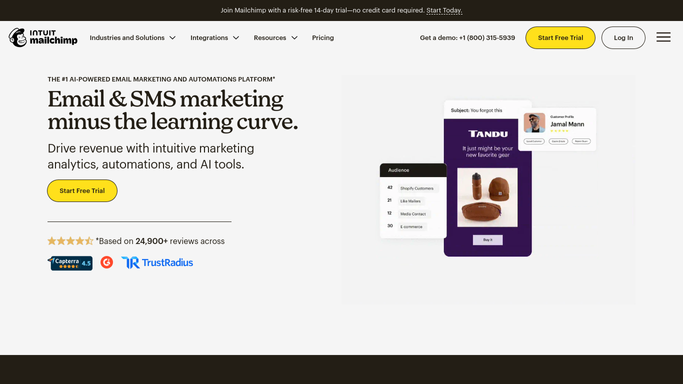
Mailchimp - draft customer launch announcement for approval
mailchimp.com How to Automate Mailchimp
WebRun opens Mailchimp to draft customer launch announcement for approval. - Draft a short customer-facing launch email announcing the new product, its key benefit, and which locations stock it
- Set the audience to the loyalty members who have purchased in the same product category in the last 90 days
- Save the campaign as a Mailchimp draft - do not schedule or send
- Add a note to the draft flagging it for marketing team review
Done when One Mailchimp draft campaign is saved for the marketing team to review. No email has been sent.


How do I manage a new product launch across all my convenience store locations?
When you add a new SKU to PDI Technologies, WebRun confirms pricebook setup, creates initial purchase orders, and builds a per-site launch checklist in Google Sheets with status columns for every step. It also drafts a targeted Mailchimp customer announcement for your marketing team to approve before any email is sent.
- Every launch step is tracked per site from day one with no manual checklist setup
- Initial purchase orders are created in PDI automatically on launch trigger
- Customer announcement is drafted and held for approval before any email is sent
Built for c-store category managers · convenience store buyers · fuel retail merchandising teams
How is each run configured?
Secure by default
Connect once, stays signed in
WebRun signs in once and keeps each session in a persistent environment, so every run picks up right where it left off.
Every action is checked against this policy before it runs.
Questions, answered
Will it send the launch announcement to customers automatically?
No. The Mailchimp campaign is saved as a draft and flagged for your marketing team to review. No email is sent to customers until a human approves and launches the campaign.
How does the checklist stay updated as sites confirm the product is live?
Your store managers or field reps update the status columns in the Google Sheet as each step is completed. WebRun creates the checklist structure; your team fills in progress.
Can it handle a product that launches in only some locations?
Yes. During setup you specify which locations are included in the launch, and WebRun creates checklist rows only for those sites, keeping the sheet clean and relevant.
Related templates
Put this on autopilot.
Turn it on in minutes - or have our team set it up for you.