Catch job costing variances before they hurt your margin
Every morning, WebRun opens Knowify, scans active concrete and paving jobs for cost variances, ranks the worst overruns, and posts a prioritized digest to Slack so your team can course-correct the same day.
- No credit card
- Under $0.01 per run
- Cancel anytime
What does WebRun do on every run?
The exact actions WebRun takes, in order - in plain language, so you can adjust anything.
-
WebRun signs in and gets to work
Opens
app.knowify.comin a real browser with your saved login - no setup, no API keys. -
1
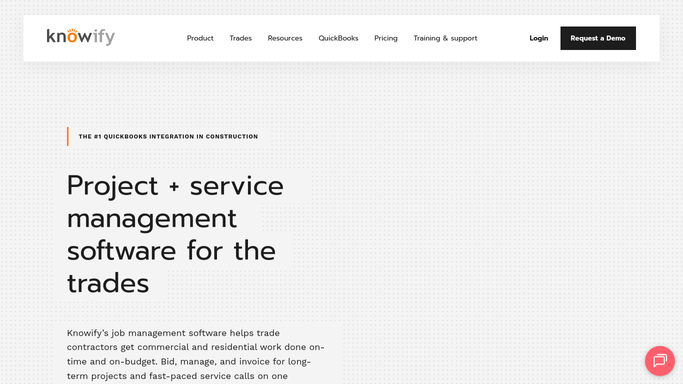
Knowify - pull job costing data for active projects
knowify.com How to Automate Knowify

WebRun opens Knowify to pull job costing data for active projects. - Open Knowify and navigate to the Job Costing section
- Filter to all active concrete and paving jobs
- For each job, capture estimated cost, actual cost to date, and percentage variance
- Flag any job where actual costs exceed the estimate by more than your threshold (e.g. 5%)
- Rank flagged jobs from worst overrun to smallest
Done when Every active job has a current variance figure and flagged jobs are ranked.
-
2
Slack - post variance digest ranked by overrun severity
slack.com How to Automate Slack
WebRun opens Slack to post variance digest ranked by overrun severity. - Post the ranked variance list to your ops or estimating Slack channel
- Include job name, estimated cost, actual cost, and variance percentage for each flagged job
- Add a note for any job within 10% of its budget as an early warning
Done when Your team has today's cost variance digest in Slack.

How do I automatically track job costing variances in Knowify every day?
WebRun opens Knowify every morning, reads estimated versus actual costs across all active concrete and paving jobs, ranks overruns by severity, and posts the digest to Slack. Your team sees a prioritized list of problem jobs before the workday starts, so overruns get addressed before they compound.
- Overruns surface the same morning they exceed your threshold, not at month-end close
- Estimators and PMs get a ranked list so they focus on the worst jobs first
- No manual log-in to Knowify needed for the daily cost check
Built for concrete contractors · paving contractors · specialty trade contractors · construction project managers
How is each run configured?
Secure by default
Connect once, stays signed in
WebRun signs in once and keeps each session in a persistent environment, so every run picks up right where it left off.
Every action is checked against this policy before it runs.
Questions, answered
How does it know which jobs are over budget?
WebRun reads live job costing data from Knowify each morning, comparing the budget you set at estimate time against actual costs posted to date. Any job past your variance threshold appears in the digest.
Will it change anything in Knowify?
No. WebRun reads and reports only. It never edits costs, adjusts budgets, or modifies any record in Knowify. All fixes stay in your hands.
Can I adjust the variance threshold?
Yes. During setup you tell WebRun your threshold (for example, flag jobs more than 5% over budget). You can update it at any time without re-running setup.
Related templates
Put this on autopilot.
Turn it on in minutes - or have our team set it up for you.