Confirm wholesale orders the moment they land
The moment a wholesale buyer places an order on LeafLink, WebRun checks Trym for available inventory from a matching harvest batch, confirms there's enough on hand to fill the order, and drafts a confirmation email with the batch, quantity, and ship date for your sales lead to review before it goes to the buyer.
- No credit card
- Under $0.01 per run
- Cancel anytime
What does WebRun do on every run?
The exact actions WebRun takes, in order - in plain language, so you can adjust anything.
-
WebRun signs in and gets to work
Opens
leaflink.comin a real browser with your saved login - no setup, no API keys. -
1
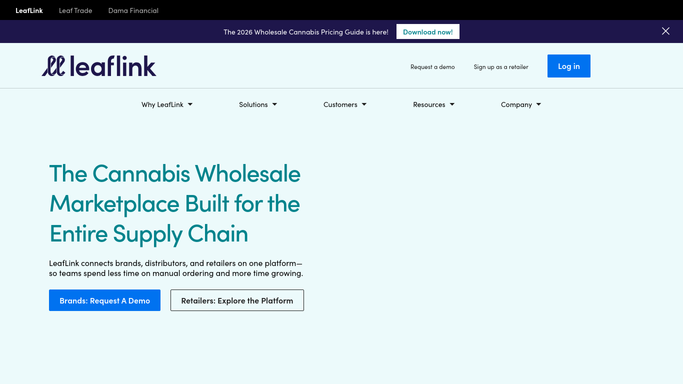
LeafLink - read the new wholesale order
leaflink.com

WebRun opens LeafLink to read the new wholesale order. - Open LeafLink and read the newly placed order's product, quantity, and requested ship date
- Capture the buyer name, license number, and delivery address
- Note any special terms like net payment days or a specific batch request
Done when The new order's product, quantity, buyer, and ship date are captured.
-
2
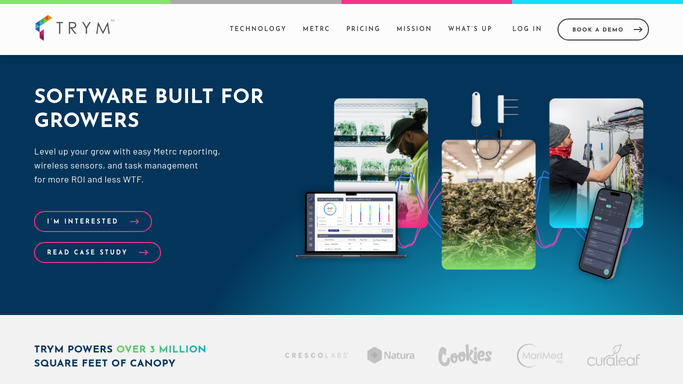
Trym - check available batch inventory
trym.io How to Automate Trym
WebRun opens Trym to check available batch inventory. - Look up available inventory in Trym for the ordered product and strain
- Match the order to a specific harvest batch with enough quantity on hand
- Flag the order if no single batch can fully cover the requested quantity
Done when The order is matched to a batch with confirmed available quantity, or flagged as short.
-
3
Gmail - draft the order confirmation
gmail.com How to Automate Gmail
WebRun opens Gmail to draft the order confirmation. - Draft a confirmation email to the buyer with the batch, quantity, price, and ship date
- Leave the draft unsent in your sales lead's Gmail for review
- Never send the confirmation without a human reviewing it first
Done when A ready-to-review confirmation draft is waiting in Gmail for every new order.

How do I automatically confirm cannabis wholesale orders without overselling a batch?
WebRun reads every new wholesale order the moment it lands on LeafLink, checks Trym for a harvest batch with enough matching inventory, and drafts a confirmation email with the batch, quantity, price, and ship date. The draft waits in Gmail for your sales lead to review and send, so buyers get a fast reply without a confirmation going out unchecked.
- Buyers get a confirmation drafted within minutes of ordering instead of by end of day
- No order is confirmed against a batch that doesn't have enough quantity on hand
- Sales leads review and send every confirmation, so nothing goes to a buyer unchecked
Built for wholesale sales leads · cannabis brand sales teams · cultivation facility sales managers · B2B cannabis account managers
How is each run configured?
Secure by default
Connect once, stays signed in
WebRun signs in once and keeps each session in a persistent environment, so every run picks up right where it left off.
Every action is checked against this policy before it runs.
Questions, answered
Will it email the buyer without anyone checking it first?
No. WebRun only drafts the confirmation in Gmail. Your sales lead reviews the batch, price, and ship date and sends it themselves, every time.
What happens if the order is bigger than the available batch?
It flags the shortfall instead of drafting a confirmation, so your sales lead can offer a partial fill or a different batch rather than promising quantity you don't have.
Does it update inventory in Trym when the order confirms?
No. WebRun only reads current inventory to check the match. Reserving or deducting inventory stays a manual step in Trym once your team confirms and sends the order.
Related templates
Put this on autopilot.
Turn it on in minutes - or have our team set it up for you.