How to Automate Sage Accounting
Sage Accounting brings in the bank feed, turns uploaded or emailed bills into drafts with AI Capture, calculates the VAT return and, through Sage Copilot, reminds late payers daily. Bills that only exist in a supplier's online account, and the weekly payment run, stay manual; a browser agent such as WebRun can prepare them for you to approve.
 Written by
Nora Whitfield
Editorial lead
Written by
Nora Whitfield
Editorial lead
 Reviewed by
Yara Haddad
Data operations
Reviewed by
Yara Haddad
Data operations
Sage Accounting is where each VAT return gets calculated
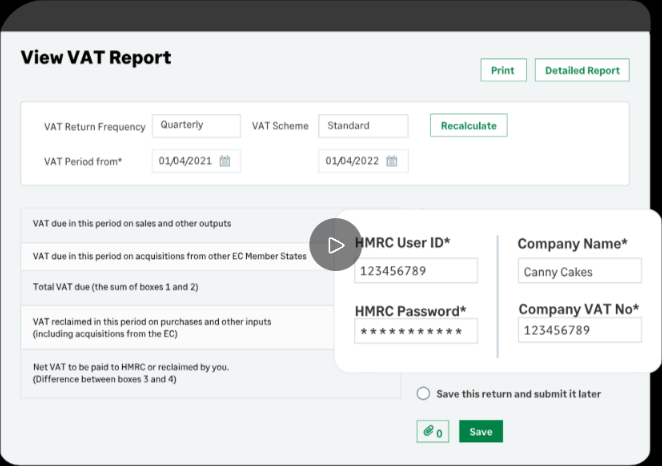
In a VAT-registered UK business, every VAT period ends with a return, and in Sage Accounting that return is calculated from whatever the books hold on the day. Sage Accounting is Sage's cloud bookkeeping for sole traders and small businesses, sold as Start, Standard and Plus.
Inside it live the sales invoices and quotes, the supplier bills and the bank feed from the business account. Payroll now sits in the same product, and Sage Copilot, Sage's AI assistant, is included in every plan. A sole trader may run the books alone, photographing receipts in the Sage Accounting mobile app, while a small company with staff also runs its payroll from the same subscription.
The owner raises the invoices, and the owner or a bookkeeper reconciles the bank. The accountant checks the VAT return and prepares the year end, usually from a login of their own that the business invited in.
The last fortnight of a VAT quarter goes on chasing paperwork
Through most of the quarter, bank lines from the feed wait to be matched and supplier invoices sit in inboxes and on websites instead of in Sage. The owner posts a few purchases with no VAT rate, or the wrong one.
In the last fortnight the owner spends evenings downloading bills from the energy supplier's website, the phone network's account page and the online stationery shop, suppliers that only publish invoices in the customer's online account. The accountant sends a list of queries: this payment with no bill behind it, that receipt with no VAT number, this transfer that might be a director's loan.
Each Friday's payment run starts with the owner totalling the bills due that week against what is in the bank, then deciding who gets paid and who waits, often from memory and a glance at the balance.
Sage Copilot chases what customers owe, not what suppliers never sent
AI Capture, on Standard and Plus, turns an uploaded PDF or a forwarded invoice email into a draft purchase invoice with the supplier, description and amount filled in, and holds it on the Draft to approve tab. The bank feed brings transactions in from the business account for reconciliation.
Sage Copilot's automatic payment reminders go out every day at 6am UTC to each customer who qualifies. Under Settings, the owner sets a minimum amount and how many days either side of the due date to write, and Draft with Copilot suggests the wording of the email.
Once Sage is connected to HMRC, Create VAT Return under Reports, VAT Returns picks the next period by itself. The owner reconciles the return, calculates it and submits it online from the same screen.
Copilot, AI Capture and the VAT return work only on what reaches Sage. An energy bill that exists only in the supplier's online account stays there until someone downloads it, and a return calculated from the books cannot show a bill that was never entered. Sage does not choose which suppliers get paid this week, and card takings still held by the payment provider are not in the bank feed.
A VAT countdown can run every Monday from the open period
Sage sets the dates of the open VAT period once it is connected to HMRC, and a countdown can start from them: days to the deadline, bank lines still unreconciled, purchases with no VAT rate. The bookkeeper could see each as a dated card on the bookkeeping board, due before the filing deadline.
The bills that never arrive could reach Sage already downloaded, as drafts in AI Capture, each matched to the payment sitting in the bank feed: energy, phone, software and marketplace invoices from each supplier's account page. The accountant would have fewer queries to send.
The owner could open Monday's payment run already laid out: the bills due and anything overdue totalled against the bank balance, with the card takings still held by the payment provider added in. An accountant who looks after several Sage clients could get each client's VAT query list a fortnight before that client's deadline.
Fetched supplier bills land on Sage's Draft to approve tab
Because AI Capture takes forwarded invoice emails, a bill only has to be fetched from the energy company's or the phone network's customer account to end up in Sage as a draft. WebRun is an AI agent that works a real Chrome browser, signed in as you. Holding the owner's supplier logins, it downloads each missing invoice and forwards it into AI Capture, noting which bank-feed payment it belongs to. The VAT countdown and the payment run go to the board and calendar the owner already uses.
Nothing it fetches posts to the books until the owner or the bookkeeper approves the draft in Sage. The owner or the accountant submits the VAT return to HMRC, and suppliers are paid by the owner alone. Every workflow on this page begins at the VAT Returns screen, the bank feed or a supplier bill.
Questions people ask
Will it submit our VAT return to HMRC?
No. Submitting stays with you or your accountant. Once a VAT return is submitted in Sage Accounting it cannot be changed, and any adjustment has to go into the next return.
Is this the same as Sage 50 or Sage Intacct?
No. This page is about Sage Accounting, the cloud product for UK sole traders and small businesses. Sage 50 is Sage's desktop accounts software, and Sage Intacct is its financial system for larger finance teams, with a separate guide of its own.
Which Sage Accounting plans include AI Capture?
Standard and Plus, not Start. Standard includes 30 captured transactions a month and Plus 100, and each one after that costs £0.20.
Can our accountant run it across all their Sage clients?
Yes, from the practice's own login. Each client's Administrator invites the practice from Manage advisor access, by Advisor ID for up to five advisors or by email for one, with Full Access, and the agent then works through the clients one at a time.
Sources
- Schedule automatic payment reminders with Sage Copilot Sage's knowledge base: automatic payment reminders are switched on under Settings, take a minimum amount and a number of days before or after the due date, go out daily at 6am UTC, and need a Copilot licence.
- Create and submit a VAT Return Sage Accounting's steps for a VAT Return: connect to HMRC so the period is set automatically, reconcile and calculate it under Reports, VAT Returns, then submit; a submitted return cannot be changed.
- Purchase automation (AI Capture) AI Capture creates draft purchase invoices from uploaded files, forwarded invoice emails and phone photos, held on the Draft to approve tab; Standard and Plus only, with 30 or 100 transactions a month included.
- Invite an accountant or bookkeeper to your subscription An Administrator invites advisors from Manage advisor access: up to five by Advisor ID or one by email, with Full Access.
- Sage Accounting (Sage UK) Sage UK's product page listing the Start, Standard and Plus plans and features including automatic invoice chasing, Making Tax Digital VAT submission, snap and scan receipts, payroll and Sage Copilot in every plan.
3 ready-made Sage Accounting workflows
Each one names the apps it touches and the exact steps it takes. Open one to read what it will do, then turn it on.


Want one of these running on your own Sage Accounting?
Show WebRun the process once and it will run it on schedule, in your own private browser environment.