Track every Amazon Business order until it lands
Every morning, WebRun opens Amazon Business, reads every open order and its shipment status, updates an Airtable purchasing log with the expected delivery date and cost of each line, and writes a short Notion page listing what is running late, what is waiting on an approver, and what arrived yesterday.
- No credit card
- Under $0.01 per run
- Cancel anytime
 Amazon Business
read open orders and shipments
Amazon Business
read open orders and shipments
How do I track open Amazon Business orders and late deliveries?
WebRun opens Amazon Business every morning, reads every open order with its shipment status and expected delivery date, and updates an Airtable purchasing log keyed on the order number. It then writes a short Notion page listing late deliveries, orders waiting on an approver, and what arrived yesterday.
- Late deliveries are visible the morning they slip, not when someone asks
- Every order sits in one Airtable log with its cost centre and total
- Approvals waiting on a person are chased before they stall a week
Built for office managers · procurement teams · operations managers · facilities teams · small business owners
What does WebRun do on every run?
The exact actions WebRun takes, in order - in plain language, so you can adjust anything.
-
WebRun signs in and gets to work
Opens
business.amazon.comin a real browser with your saved login - no setup, no API keys. -
1
Amazon Business - read open orders and shipments

WebRun opens Amazon Business to read open orders and shipments. - Sign in to Amazon Business and open Your Orders
- List every order that is not yet delivered, with its order number, items, quantity, total, buyer, and expected delivery date
- Open the shipment detail on anything marked delayed and capture the new estimate
- Check the approvals area for orders still waiting on an approver and note how long they have been waiting
- Capture orders delivered since the previous run so they can be closed out
Done when Every open order, delayed shipment, and pending approval is captured with its dates and amounts.
-
2
Airtable - keep the purchasing log current
airtable.com How to Automate Airtable
WebRun opens Airtable to keep the purchasing log current. - Open your purchasing base and match each order number to an existing row
- Create rows for new orders with the items, buyer, cost centre, total, and expected delivery date
- Update the status and expected date on rows that moved, and mark delivered orders as received
- Keep one row per order number so the log never fills with duplicates
- Roll up spend for the month by cost centre so the total is always visible
Done when The Airtable purchasing log matches Amazon Business with no duplicate order rows.
-
3
Notion - write today's exceptions
notion.so How to Automate Notion
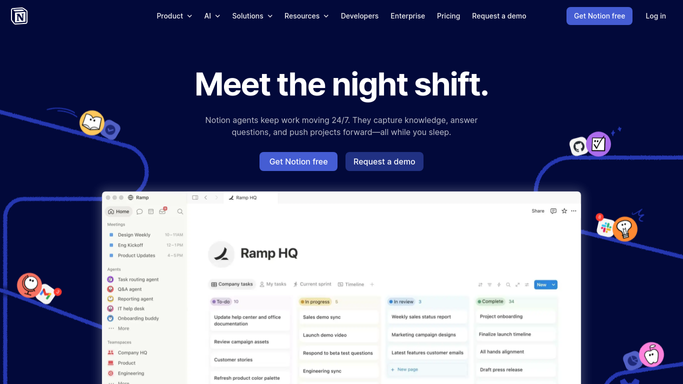
WebRun opens Notion to write today's exceptions. - Create today's page in your operations space with three short sections
- List orders past their expected delivery date, oldest first, with the order number and the buyer to chase
- List orders waiting on an approver with the days waiting and who needs to act
- List what arrived yesterday so the team knows what to expect on the shelf
- Keep the page factual and short enough to read in under a minute
Done when Today's exception page is published in Notion with late, pending, and delivered sections.
How is each run configured?
Secure by default
Connect once, stays signed in
WebRun signs in once and keeps each session in a persistent environment, so every run picks up right where it left off.
Amazon Business
Sign in once
Every action is checked against this policy before it runs.
Questions, answered
Will it buy anything or approve a purchase?
No. WebRun only reads your Amazon Business order screens. It never adds to a cart, never places an order, never approves a requisition, and never cancels or returns anything. Every purchasing decision stays with a human.
Where does the information go?
Into your own Airtable base and your own Notion workspace, both internal. WebRun does not email suppliers, contact Amazon support, or share order details outside your team.
How does it avoid duplicating orders in the log?
It matches on the Amazon order number every run, so an existing order is updated in place rather than added again. Delivered orders are marked received and stop appearing on the exception page.
Related templates
Put this on autopilot.
Turn it on in minutes - or have our team set it up for you.