Turn your creative brief queue into finished variations
Every morning, WebRun reads the rows marked approved in your creative brief sheet in Google Sheets, opens Adobe Firefly and generates the requested variations for each brief, saves them to your Firefly library, and logs every generated set in Notion with its brief, prompt, and status waiting for a human review.
- No credit card
- Under $0.01 per run
- Cancel anytime
How do I generate creative variations from a brief queue automatically?
WebRun reads the approved rows in your Google Sheets creative brief queue every morning, then opens Adobe Firefly and generates the requested variations for each brief at the aspect ratio and style you specified. It logs every set in Notion as Awaiting Review with the exact prompt and an assigned reviewer.
- Approved briefs are generated overnight, ready by the morning review
- Every set carries the exact prompt and settings used
- Nothing is published until a named reviewer approves it
Built for marketing teams · creative operations · agencies · brand designers
What does WebRun do on every run?
The exact actions WebRun takes, in order - in plain language, so you can adjust anything.
-
WebRun signs in and gets to work
Opens
firefly.adobe.comin a real browser with your saved login - no setup, no API keys. -
1
Google Sheets - read the approved brief queue
google.com How to Automate Google Sheets

WebRun opens Google Sheets to read the approved brief queue. - Open your Creative Briefs sheet in Google Sheets
- Read every row whose status is Approved and whose work has not been generated yet
- Capture the brief text, the aspect ratio, the style notes, and how many variations are wanted
- Skip rows still marked Draft so nothing unapproved is produced
Done when Every approved, ungenerated brief is captured with its settings.
-
2
Adobe Firefly - generate the variations
firefly.adobe.com

WebRun opens Adobe Firefly to generate the variations. - Open Adobe Firefly and start a new generation
- Enter the brief text as the prompt with the aspect ratio and style notes from the sheet
- Generate the requested number of variations for each brief
- Save the results into the Firefly project folder named for that brief
- Never publish, share, or post a generated image anywhere public
Done when Every approved brief has its variations generated and saved to its project folder.
-
3
Notion - log each set for review
notion.so How to Automate Notion
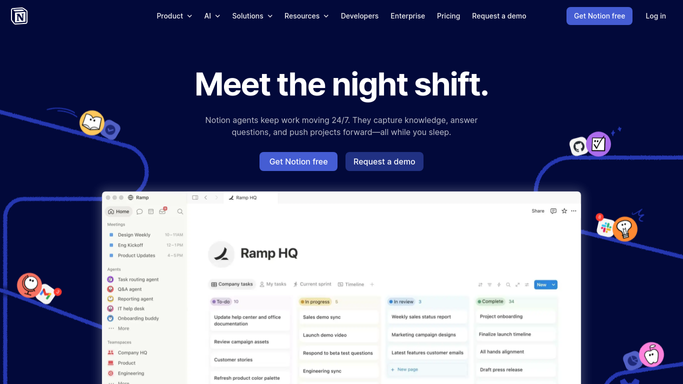
WebRun opens Notion to log each set for review. - Create one entry per brief in your Creative Review database in Notion
- Record the brief, the exact prompt used, the settings, and the number of variations
- Set the status to Awaiting Review and assign the reviewer named on the sheet row
- Note anything the generation could not honour so the reviewer sees it upfront
Done when Every generated set has a Notion entry awaiting a named reviewer.
How is each run configured?
Secure by default
Connect once, stays signed in
WebRun signs in once and keeps each session in a persistent environment, so every run picks up right where it left off.
Every action is checked against this policy before it runs.
Questions, answered
Will it publish the images anywhere?
No. Generated variations stay in your Adobe Firefly library and are logged in Notion as Awaiting Review. WebRun never posts to social, sends to a client, or ships an asset into a campaign without a human approving it.
Can it generate from an unapproved brief?
No. It reads only rows marked Approved in your Google Sheet. Rows still in Draft are skipped entirely, so nothing gets produced before a person has signed off on the brief.
What if a brief cannot be generated as written?
The Notion entry records what could not be honoured, along with the exact prompt used, so the reviewer sees the limitation immediately instead of guessing why a set looks wrong.
Related templates
Put this on autopilot.
Turn it on in minutes - or have our team set it up for you.