Keep occupational health employer accounts engaged with timely check-ins
Every Monday, WebRun opens Experity and reviews employer accounts with occupational health visit activity in the past 30 days. It identifies accounts that have had visits but no recorded follow-up contact during that period, drafts a check-in email to the employer contact for staff review, and logs each account and its outreach status to Google Sheets so nothing slips through.
- No credit card
- Under $0.01 per run
- Cancel anytime
What does WebRun do on every run?
The exact actions WebRun takes, in order - in plain language, so you can adjust anything.
-
WebRun signs in and gets to work
Opens
app.experityhealth.comin a real browser with your saved login - no setup, no API keys. -
1
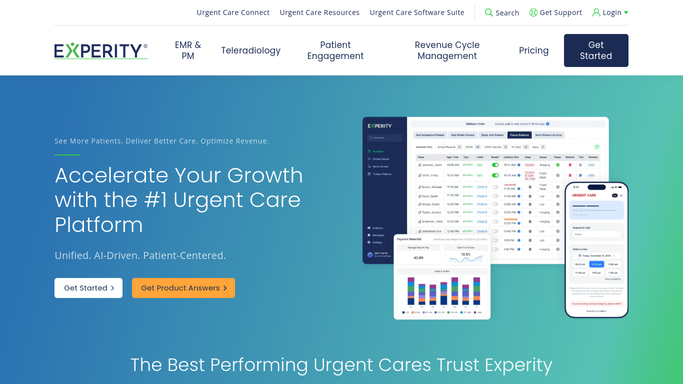
Experity - pull employer accounts with recent visit activity
experityhealth.com How to Automate Experity

WebRun opens Experity to pull employer accounts with recent visit activity. - Open Experity and navigate to the occupational health or employer account section
- Filter accounts to those with visit activity in the past 30 days
- Identify accounts where no follow-up contact or note is recorded in the last 30 days
- Capture the employer name, contact name, contact email, recent visit count, and last visit date for each qualifying account
Done when All employer accounts with recent activity and no recent follow-up are listed with contact details.
-
2
Gmail - draft account check-in emails for staff review
gmail.com How to Automate Gmail
WebRun opens Gmail to draft account check-in emails for staff review. - For each qualifying account, draft a brief, professional check-in email to the employer contact
- Reference the recent visit activity in general terms without including any patient names or protected health information
- Save every email as a draft in Gmail. Do not send any email without explicit staff review and approval
- Flag accounts where the contact email is missing so staff can locate it before approving the draft
Done when A draft check-in email exists in Gmail for each qualifying employer account. No email has been sent.
-
3
Google Sheets - log accounts and outreach status
google.com How to Automate Google Sheets
WebRun opens Google Sheets to log accounts and outreach status. - Open the occupational health account tracking sheet and append a row for each qualifying account
- Record the employer name, contact name, last visit date, visit count, draft email status, and a notes column for staff follow-up
- Mark each row as pending review so the team knows which drafts are awaiting approval
Done when Every qualifying employer account is logged in Google Sheets with its visit summary and draft outreach status.


How do I keep my urgent care occupational health employer accounts engaged with regular follow-ups?
WebRun reviews your Experity employer accounts every Monday, identifies those with recent occupational health visits but no follow-up contact in the past 30 days, and drafts a check-in email in Gmail for each one. All emails are held for staff review. WebRun also logs every account and its outreach status to Google Sheets so your team has a clear weekly pipeline.
- No active employer account goes more than 30 days without a reviewed follow-up attempt
- Staff control every outreach email with a draft-first approval step before anything is sent
- Google Sheets log gives the occ-health team a live view of account engagement each week
Built for urgent care occ-health coordinators · urgent care business development teams · clinic operations managers · urgent care medical directors
How is each run configured?
Secure by default
Connect once, stays signed in
WebRun signs in once and keeps each session in a persistent environment, so every run picks up right where it left off.
Every action is checked against this policy before it runs.
Questions, answered
Will WebRun send employer check-in emails without staff approval?
No. Every email is saved as a draft in Gmail and must be reviewed and approved by staff before it is sent. No outreach goes to any employer contact without explicit sign-off from your team.
Does the draft email include any patient information?
No. Draft emails reference recent visit activity in general terms only and do not include any patient names, diagnoses, or protected health information. Staff review each draft before it is approved for delivery.
How does the Google Sheets log help manage the account pipeline?
Each row records the employer name, contact, last visit date, visit count, and draft status, giving your occ-health team a running view of account engagement and a clear list of which follow-ups are pending each week.
Related templates
Put this on autopilot.
Turn it on in minutes - or have our team set it up for you.