Triage and tag every incoming support ticket
When a ticket arrives in Freshdesk, WebRun reads the content, applies category, product, and priority tags based on your rules, assigns it to the matching team queue, and posts a triage summary to your #support Slack channel.
- No credit card
- Under $0.01 per run
- Cancel anytime
What does WebRun do on every run?
The exact actions WebRun takes, in order - in plain language, so you can adjust anything.
-
WebRun signs in and gets to work
Opens
freshdesk.comin a real browser with your saved login - no setup, no API keys. -
1
Freshdesk - read, tag & route the ticket
freshdesk.com How to Automate Freshdesk

WebRun opens Freshdesk to read, tag & route the ticket. - Open the new ticket and read subject, body, and customer history
- Apply the appropriate category tag (Billing, Technical, General, Feature Request) based on content
- Set priority to Urgent, High, Normal, or Low based on urgency signals and customer tier
- Assign the ticket to the matching team group (e.g. Billing Team, Technical Team)
Done when The ticket has category, priority, and team group set before any agent touches it.
-
2
Slack - post the triage summary
slack.com How to Automate Slack
WebRun opens Slack to post the triage summary. - Post a one-line summary to #support: ticket ID, subject, priority, and assigned team
- Flag Urgent tickets with an @here mention so the team sees them immediately
Done when The triage summary is in Slack and the team is aware of any urgent items.
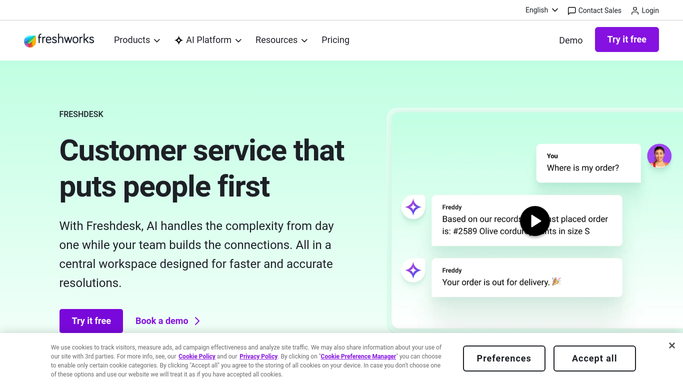

How can I automatically triage and tag incoming support tickets?
WebRun automatically triages every incoming Freshdesk ticket the moment it arrives. It reads the content, applies your category, product, and priority tags, routes the ticket to the correct team queue, and posts a triage summary to your Slack channel - so agents open a fully sorted inbox without lifting a finger.
- Agents open a pre-sorted inbox every time
- No ticket lands in the wrong queue
- Triage summary posted to Slack on every run
Built for customer support teams · SaaS companies · e-commerce businesses · helpdesk managers
How is each run configured?
Secure by default
Connect once, stays signed in
WebRun signs in once and keeps each session in a persistent environment, so every run picks up right where it left off.
Every action is checked against this policy before it runs.
Questions, answered
What if it tags a ticket incorrectly?
Agents can override any tag - WebRun is a first pass, not final. You can also tune the tagging rules in the plan to match your exact categories.
Does it reassign tickets already in a queue?
No - it only acts on newly arrived tickets and won't move anything an agent has already opened.
Can it handle our custom priority tiers?
Yes - give WebRun your tier definitions (e.g. enterprise customers always Urgent) and it will apply them consistently on every ticket.
Related templates
Put this on autopilot.
Turn it on in minutes - or have our team set it up for you.