Fill every PT cancellation from your waitlist in minutes
Each morning and after any same-day cancellation is logged, WebRun reviews open slots in Jane, matches each opening to the best waitlist candidate by therapist and visit type, drafts a personalized slot-offer email for the front desk to review and send, and posts a same-day fill alert to Slack so no slot sits empty longer than necessary.
- No credit card
- Under $0.01 per run
- Cancel anytime
What does WebRun do on every run?
The exact actions WebRun takes, in order - in plain language, so you can adjust anything.
-
WebRun signs in and gets to work
Opens
jane.appin a real browser with your saved login - no setup, no API keys. -
1
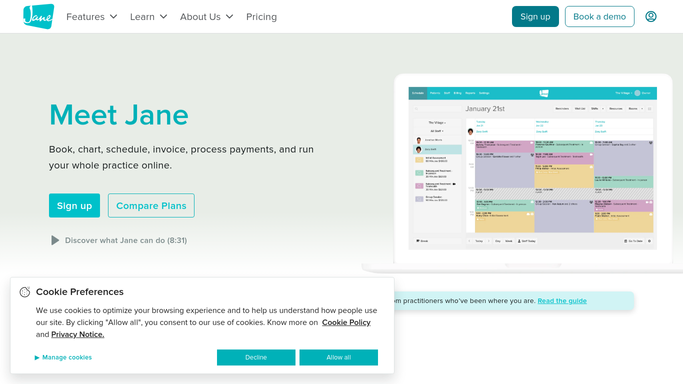
Jane - identify open slots from cancellations and match to waitlist patients
jane.app How to Automate Jane

WebRun opens Jane to identify open slots from cancellations and match to waitlist patients. - Open Jane and review today's and tomorrow's schedule for appointments that have been cancelled
- Check the waitlist for patients whose preferred therapist, visit type, and availability match the open slot
- Rank waitlist candidates by how long they have been waiting and by schedule compatibility
- Capture the slot details and the top one or two waitlist matches for each opening
Done when Every open slot from a cancellation has at least one ranked waitlist match identified.
-
2
Gmail - draft personalized slot-offer messages for waitlist patients
gmail.com How to Automate Gmail
WebRun opens Gmail to draft personalized slot-offer messages for waitlist patients. - For each matched waitlist patient, draft a personalized email offering the available appointment slot
- Include the date, time, therapist name, and a clear call to confirm by a specific response deadline
- Leave every draft unsent for front-desk review - patient-facing offers are never sent automatically
- Label each draft with the slot date and therapist name so front desk can triage quickly
Done when A Gmail draft slot offer exists for the top waitlist match for every open cancellation slot.
-
3
Slack - alert front desk to cancellations needing same-day fill
slack.com How to Automate Slack
WebRun opens Slack to alert front desk to cancellations needing same-day fill. - Post an alert to the front-desk Slack channel listing each open slot, the matched waitlist patient, and the Gmail draft ready for review
- Flag same-day openings as urgent so they are actioned before the day begins
- Include the slot time and matched patient name so staff can action without opening the Gmail drafts folder first
Done when Front desk has a same-day fill alert in Slack with Gmail drafts ready to send for every open slot.


How do I automatically fill PT appointment cancellations from my waitlist?
Every morning, WebRun reviews cancelled appointments in Jane, matches each open slot to the best waitlist candidate by therapist preference, visit type, and wait time, then drafts a personalized slot-offer email in Gmail for the front desk to review and send. A Slack alert surfaces every opening with the matched patient, so cancellations are filled the same day.
- Cancellations are matched to the best waitlist patient before the day begins
- Front desk sends a reviewed slot offer within minutes of the alert
- No slot-offer reaches a patient without staff approval
Built for PT front-desk staff · physical therapy clinic managers · outpatient PT practices · physical therapists
How is each run configured?
Secure by default
Connect once, stays signed in
WebRun signs in once and keeps each session in a persistent environment, so every run picks up right where it left off.
Every action is checked against this policy before it runs.
Questions, answered
Will it contact waitlist patients and offer slots without front-desk review?
No. Every slot-offer message is drafted in Gmail and left unsent. The front desk reviews each draft before sending so no patient receives an offer without staff approval.
How does it decide which waitlist patient gets the offer?
It matches by therapist preference, visit type, and schedule compatibility, then ranks by how long the patient has been waiting. The front desk sees the top match for each slot and can substitute a different candidate if preferred.
What if two open slots match the same waitlist patient?
It drafts an offer for the slot that best matches the patient's preferences and lists both openings in the Slack alert so the front desk can decide which to offer first.
Related templates
Put this on autopilot.
Turn it on in minutes - or have our team set it up for you.