Win back canceled members
Every Monday, WebRun opens Zen Planner to find members who canceled in the past six months, adds eligible contacts to a Mailchimp winback email sequence, and logs each entry to a Google Sheet so your team can track progress and prevent duplicate outreach.
- No credit card
- Under $0.01 per run
- Cancel anytime
What does WebRun do on every run?
The exact actions WebRun takes, in order - in plain language, so you can adjust anything.
-
WebRun signs in and gets to work
Opens
app.zenplanner.comin a real browser with your saved login - no setup, no API keys. -
1
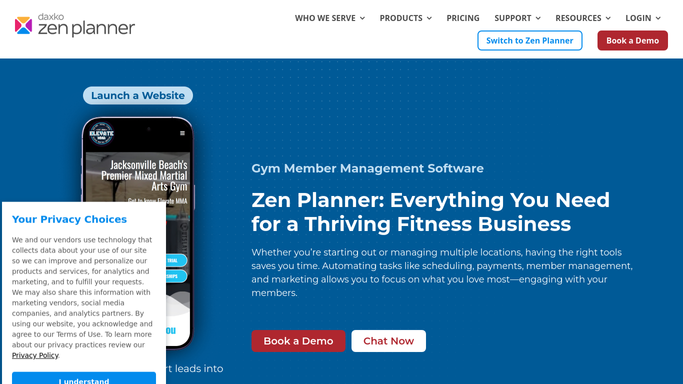
Zen Planner - find recently canceled members
zenplanner.com How to Automate Zen Planner

WebRun opens Zen Planner to find recently canceled members. - Open Zen Planner and filter for members with a canceled status in the past six months
- Capture each member's name, email, membership tier, and cancellation date
- Exclude members who canceled due to relocation or a medical reason if flagged in notes
Done when All eligible lapsed members from the past six months are listed with their details.
-
2
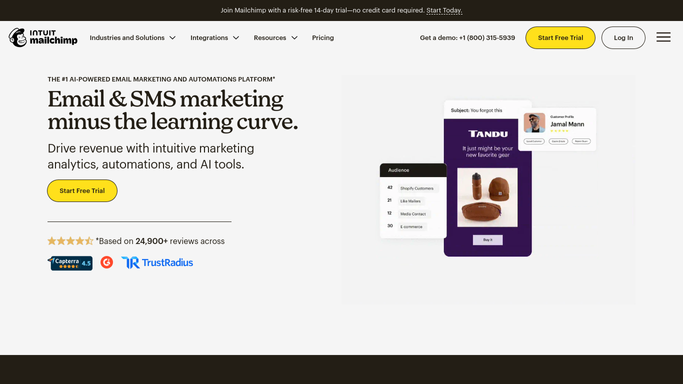
Mailchimp - enroll in winback sequence
mailchimp.com How to Automate Mailchimp
WebRun opens Mailchimp to enroll in winback sequence. - Add each eligible lapsed member to the winback email audience segment in Mailchimp
- Confirm they are enrolled in the winback automation sequence
- Skip any contacts already active in a winback sequence to prevent duplicates
Done when All new lapsed members are enrolled in the Mailchimp winback sequence without duplicates.
-
3
Google Sheets - log winback contacts
google.com How to Automate Google Sheets
WebRun opens Google Sheets to log winback contacts. - Append each enrolled member to the winback tracking Google Sheet
- Log their name, email, cancellation date, and Mailchimp enrollment date
- Mark the sheet row so the same contact is not re-added on a future run
Done when Every winback contact is logged in the tracking sheet with enrollment status.

How do I automatically win back canceled gym members with an email sequence?
WebRun opens Zen Planner every Monday, finds members who canceled in the past six months, and enrolls eligible contacts in your Mailchimp winback sequence. Each contact is logged to a Google Sheet to prevent duplicates and track re-engagement progress, giving your team a clean, automated pipeline for winning back lapsed members.
- Every eligible lapsed member enters a winback sequence within one week of cancellation
- Duplicate outreach is prevented through Google Sheets deduplication
- Re-engagement progress is tracked in a clean, up-to-date log
Built for CrossFit gym owners · box membership directors · gym marketing staff · functional fitness studio owners
How is each run configured?
Secure by default
Connect once, stays signed in
WebRun signs in once and keeps each session in a persistent environment, so every run picks up right where it left off.
Every action is checked against this policy before it runs.
Questions, answered
Will it email lapsed members directly without staff review?
The winback emails are sent by your existing Mailchimp automation sequence, which your team configures and controls. WebRun only enrolls contacts in that sequence. Review and update the Mailchimp sequence copy before activating to ensure every message reflects your current offer.
How does it avoid contacting the same person twice?
WebRun checks the Google Sheet log and the Mailchimp audience before adding anyone, so contacts already enrolled in a winback sequence or already logged are automatically skipped on every run.
Which canceled members does it include?
It targets members who canceled within the past six months in Zen Planner and excludes those flagged as relocated or medically unavailable, focusing the winback on members most likely to return.
Related templates
Put this on autopilot.
Turn it on in minutes - or have our team set it up for you.