Get a daily children's check-in and security digest every service day
After each service, WebRun opens Planning Center Check-Ins, pulls total child headcount by room and age group, flags any children checked in without a matching checkout, identifies any security code anomalies, and posts a concise digest to the children's ministry channel in Slack with all anomalies highlighted.
- No credit card
- Under $0.01 per run
- Cancel anytime
What does WebRun do on every run?
The exact actions WebRun takes, in order - in plain language, so you can adjust anything.
-
WebRun signs in and gets to work
Opens
check-ins.planningcenter.comin a real browser with your saved login - no setup, no API keys. -
1
Planning Center - pull check-in and checkout records by room
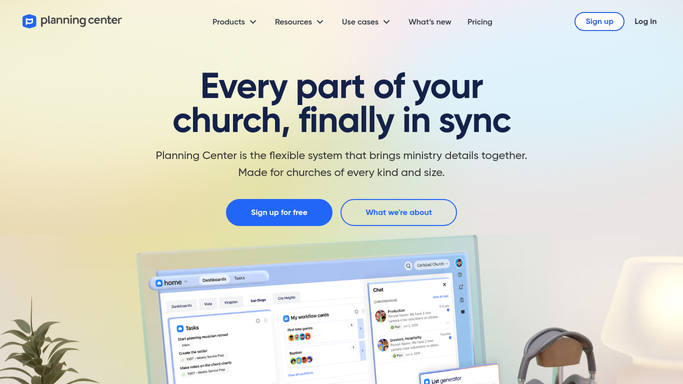
planningcenter.com How to Automate Planning Center

WebRun opens Planning Center to pull check-in and checkout records by room. - Open Planning Center Check-Ins and select the most recent service
- Pull total check-ins and checkouts by room and age group
- Identify any children who were checked in but have no corresponding checkout record
- Flag any security code mismatches or manual override events logged during the service
- Note the total headcount and compare to the prior four-week average for the same service time
Done when All check-in and checkout records are reviewed and anomalies are identified.
-
2
Google Sheets - log attendance and anomalies in running tracker
google.com How to Automate Google Sheets
WebRun opens Google Sheets to log attendance and anomalies in running tracker. - Open the children's ministry attendance tracker in Google Sheets
- Add a row for this service with total headcount by room, date, and service time
- Log any anomalies: missing checkouts, security overrides, or headcount variances
- Mark anomaly rows in red so the director can review them quickly
Done when Service attendance and all anomalies are logged in the running tracker.
-
3
Slack - post digest with flagged anomalies to children's ministry team
slack.com How to Automate Slack
WebRun opens Slack to post digest with flagged anomalies to children's ministry team. - Post the digest to the children's ministry Slack channel with total headcount and room breakdown
- Lead with any anomalies: missing checkouts, security code issues, or headcount variances
- Include a link to the Google Sheets tracker for the full record
- If there are zero anomalies, confirm that clearly so leadership can close the service with confidence
Done when The children's ministry team has a complete service digest in Slack with all anomalies visible.


How do I automatically get a children's ministry check-in and security digest after each service?
After each service, WebRun pulls the complete children's check-in and checkout records from Planning Center, flags any children without a checkout, security code anomalies, and headcount variances, logs everything in a Google Sheets tracker, and posts a concise digest to the children's ministry Slack channel with all anomalies highlighted.
- Every missing checkout and security anomaly is flagged within minutes of each service ending
- Children's ministry directors get a zero-anomaly confirmation or a clear action list after every service
- A running attendance log in Google Sheets tracks headcount trends over time
Built for children's ministry directors · church safety coordinators · children's ministry volunteers · church administrators
How is each run configured?
Secure by default
Connect once, stays signed in
WebRun signs in once and keeps each session in a persistent environment, so every run picks up right where it left off.
Every action is checked against this policy before it runs.
Questions, answered
Does this replace the physical check-in and security procedures during a service?
No. WebRun runs after the service to surface anomalies in the data for review. All physical check-in, security badge, and pickup verification procedures should remain in place during the service itself.
What counts as a security anomaly?
By default, anomalies include children with no checkout record, security code override events logged during the service, and headcount variances of more than 10 percent from the prior four-week average. You can customize these thresholds during setup.
Who can see the children's names and check-in records in the digest?
The Slack digest is sent only to the children's ministry channel. Child names are included only in anomaly flags where a specific record needs follow-up. Aggregate headcounts are used everywhere else to limit unnecessary exposure of children's information.
Related templates
Put this on autopilot.
Turn it on in minutes - or have our team set it up for you.