Flag unusual valuation figures and data anomalies before a report goes to a client
Every morning, WebRun scans BizEquity engagements that are nearing completion for data anomalies, including revenue figures inconsistent with prior years, valuation multiples outside the typical industry range, and incomplete financial fields, then posts a flagged exceptions list to Slack and logs each issue in Google Sheets for advisor review.
- No credit card
- Under $0.01 per run
- Cancel anytime
What does WebRun do on every run?
The exact actions WebRun takes, in order - in plain language, so you can adjust anything.
-
WebRun signs in and gets to work
Opens
app.bizequity.comin a real browser with your saved login - no setup, no API keys. -
1
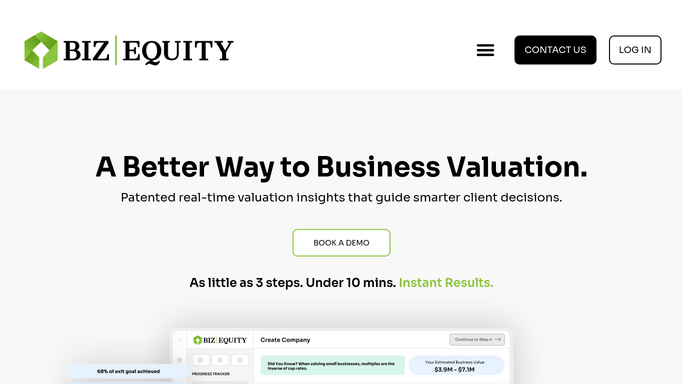
BizEquity - scan near-complete engagements for data anomalies
bizequity.com How to Automate BizEquity

WebRun opens BizEquity to scan near-complete engagements for data anomalies. - Open BizEquity and filter to engagements in the In Review or Ready for Delivery stage
- For each engagement, check that all required financial fields (revenue, EBITDA, total assets) are populated
- Compare the current year revenue to the prior year: flag any change of more than 40 percent as unusual
- Check the implied valuation multiple against the typical range for the client's industry classification in BizEquity and flag any outlier
Done when All near-complete engagements have been scanned and any anomaly is noted.
-
2
Google Sheets - log each exception with details
google.com How to Automate Google Sheets
WebRun opens Google Sheets to log each exception with details. - Open the exception log sheet
- Add a row for each flagged engagement with the client name, anomaly type, the value that triggered the flag, and the expected range
- Mark the row as Open until the advisor has reviewed and resolved the issue
Done when Every flagged exception is recorded in the Google Sheets log with full details.
-
3
Slack - post exception flags for advisor review
slack.com How to Automate Slack
WebRun opens Slack to post exception flags for advisor review. - Post a daily exception alert to the advisory team channel
- List each flagged engagement with the anomaly type and a brief note on what looks unusual
- Ask the responsible advisor to review the BizEquity data before the report is delivered to the client
Done when Advisors have today's exception flags in Slack and know which engagements need data review.


How do I automatically flag unusual valuation figures and data errors in BizEquity before delivering a report?
Every morning, WebRun scans BizEquity engagements nearing completion for data anomalies: missing financial fields, revenue swings of more than 40 percent from prior year, and valuation multiples outside the typical industry range. Each exception is logged in Google Sheets and posted to Slack so the advisor can review the data before the report reaches the client.
- Data errors caught before a report reaches the client
- Outlier multiples flagged against industry benchmarks on every engagement
- Exception log in Google Sheets tracks every flag until the advisor resolves it
Built for valuation advisors · accounting firms · M&A advisors · business bankers · exit planning consultants
How is each run configured?
Secure by default
Connect once, stays signed in
WebRun signs in once and keeps each session in a persistent environment, so every run picks up right where it left off.
Every action is checked against this policy before it runs.
Questions, answered
Will it block a report from being delivered if it finds an anomaly?
No. WebRun flags the issue in Slack and logs it for the advisor to review. The decision to hold or deliver the report always rests with the advisor.
How does it define an unusual valuation multiple?
It compares the implied multiple against the typical industry range for the business type as classified in BizEquity. Any multiple outside a two-standard-deviation band is flagged for review.
Can I customize the thresholds for what counts as an anomaly?
Yes. Set your revenue change threshold and multiple band limits in the Google Sheets configuration tab and WebRun applies those values on each run.
Related templates
Put this on autopilot.
Turn it on in minutes - or have our team set it up for you.