Build a weekly worklist of valuation clients at risk of disengagement
Every Monday, WebRun reviews BizEquity engagement records for clients who have not advanced their engagement in more than 14 days, logs each at-risk client in Google Sheets with a disengagement risk score, prepares a re-engagement email campaign draft in Mailchimp for advisor review, and posts the prioritized worklist to Slack.
- No credit card
- Under $0.01 per run
- Cancel anytime
What does WebRun do on every run?
The exact actions WebRun takes, in order - in plain language, so you can adjust anything.
-
WebRun signs in and gets to work
Opens
app.bizequity.comin a real browser with your saved login - no setup, no API keys. -
1
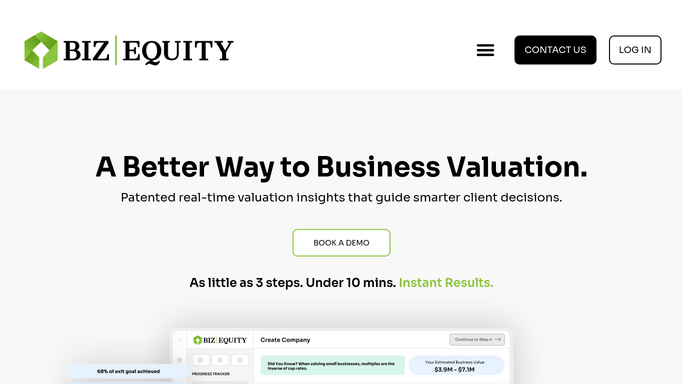
BizEquity - identify stalled or unresponsive client engagements
bizequity.com How to Automate BizEquity

WebRun opens BizEquity to identify stalled or unresponsive client engagements. - Open BizEquity and review all active engagements
- Flag any engagement where the last activity or stage change was more than 14 days ago
- Note the client name, responsible advisor, the last action taken, and days since last movement
Done when All stalled engagements are identified with days-since-last-activity recorded.
-
2
Google Sheets - log at-risk clients with risk score
google.com How to Automate Google Sheets
WebRun opens Google Sheets to log at-risk clients with risk score. - Open the at-risk client tracker sheet
- Add or update each flagged client row with the current stall duration and the last advisor action
- Calculate a simple risk score: 1 point per 7 days stalled, with extra points for clients who have not responded to two or more outreach attempts
Done when Every at-risk client is logged with an updated risk score in the tracker.
-
3
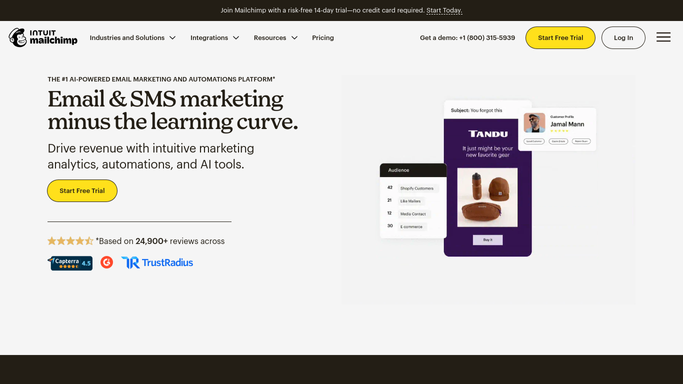
Mailchimp - prepare re-engagement campaign draft for advisor review
mailchimp.com How to Automate Mailchimp
WebRun opens Mailchimp to prepare re-engagement campaign draft for advisor review. - Open Mailchimp and find or create the re-engagement campaign segment for lapsed valuation clients
- Add the newly flagged clients to the segment
- Draft a re-engagement email reminding clients of the value of completing their valuation and inviting them to schedule a call
- Leave the campaign in Draft status for advisor review and approval before sending
Done when A Mailchimp re-engagement campaign draft is ready for advisor review. No email is sent without approval.
-
4
Slack - post prioritized disengagement worklist
slack.com How to Automate Slack
WebRun opens Slack to post prioritized disengagement worklist. - Post the weekly disengagement worklist to the advisory team Slack channel
- Sort clients by risk score, highest first
- Name the responsible advisor for each client and note the days stalled
Done when The team has this week's at-risk client worklist in Slack.


How do I identify business valuation clients at risk of disengaging and prepare re-engagement outreach?
Every Monday, WebRun scans BizEquity for engagement records that have not moved in more than 14 days, scores each client by disengagement risk in Google Sheets, prepares a re-engagement email campaign draft in Mailchimp for advisor approval, and posts the prioritized worklist to Slack so advisors can rescue at-risk clients before they walk away.
- At-risk clients are surfaced every Monday before the relationship breaks down
- Re-engagement email campaign is drafted and ready for one-click approval
- Risk scoring prioritizes which clients the advisor calls first
Built for business valuation advisors · accounting firms · financial planning practices · exit planning consultants
How is each run configured?
Secure by default
Connect once, stays signed in
WebRun signs in once and keeps each session in a persistent environment, so every run picks up right where it left off.
Every action is checked against this policy before it runs.
Questions, answered
Will it send the re-engagement email to clients automatically?
No. The Mailchimp campaign is left in Draft status for the advisor to review and approve before any email goes to a client.
How is the disengagement risk score calculated?
It scores one point per 7 days stalled, plus extra points for any client who has not responded to two or more outreach attempts, giving the highest-risk clients the top spots on the worklist.
What if a client was stalled because the advisor was on leave?
The advisor can update the last-activity note in Google Sheets to reset the score, and that client's risk score drops on the next run.
Related templates
Put this on autopilot.
Turn it on in minutes - or have our team set it up for you.