Triage negative micro market reviews and draft responses for approval
Every morning, WebRun checks for new negative reviews related to your micro market locations, reads any spoilage, expiry, or kiosk complaints from customer feedback channels, drafts a personalised response in Gmail for each, and alerts the team in Slack that responses are ready for review before anyone responds publicly.
- No credit card
- Under $0.01 per run
- Cancel anytime
What does WebRun do on every run?
The exact actions WebRun takes, in order - in plain language, so you can adjust anything.
-
WebRun signs in and gets to work
Opens
adm.365retailmarkets.comin a real browser with your saved login - no setup, no API keys. -
1
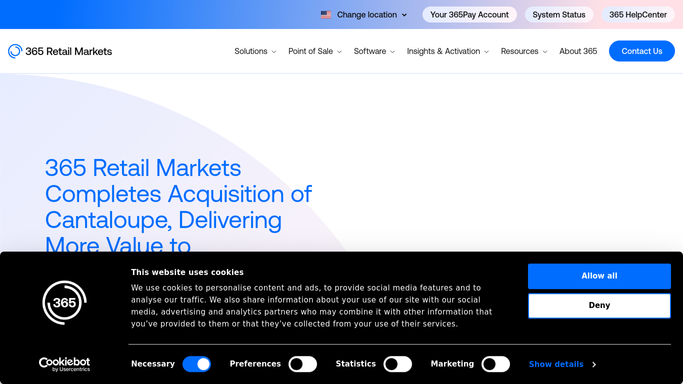
365 Retail Markets - check ADM feedback and complaint logs by location
365retailmarkets.com How to Automate 365 Retail Markets

WebRun opens 365 Retail Markets to check ADM feedback and complaint logs by location. - Open ADM and check the customer feedback or complaint log for new submissions since yesterday
- Identify submissions flagged as negative, including spoilage complaints, expired product reports, and kiosk malfunction complaints
- Capture the location, complaint type, customer name if available, and submission date for each
- Tag each complaint by theme: product quality, expiry or spoilage, kiosk issue, or payment problem
Done when All new negative feedback submissions are captured and categorised by location and theme.
-
2
Gmail - draft a response for each negative review or complaint
gmail.com How to Automate Gmail
WebRun opens Gmail to draft a response for each negative review or complaint. - Draft a response email for each complaint using the customer's name and the specific issue raised
- Acknowledge the problem, describe the corrective action the team will take, and offer an appropriate gesture such as a loyalty credit
- Leave every draft in Gmail as a draft. Do not send any response to the customer without human review and approval
Done when A draft response is created in Gmail for every new negative complaint, ready for team review.
-
3
Slack - alert team that response drafts are ready for review
slack.com How to Automate Slack
WebRun opens Slack to alert team that response drafts are ready for review. - Post a triage summary to the operations channel listing each new complaint with its location, theme, and a link to the Gmail draft
- Lead with the most urgent complaints, such as expired product reports, so the team prioritises correctly
- Confirm that no response has been sent and all drafts require approval before going to the customer
Done when The operations team has a triage list in Slack with links to every draft response for review.


How do I automatically triage negative micro market reviews and draft responses?
WebRun checks 365 Retail Markets ADM for new negative complaints and spoilage reports every morning, drafts a personalised response in Gmail for each using the customer's name and specific issue, and posts a triage list to Slack so the team can review and approve each response before any message reaches a customer.
- Every negative complaint receives a personalised draft response the same morning, with no issue left unaddressed overnight
- Spoilage and expired product complaints are prioritised in the triage list so planogram issues are caught quickly
- No response reaches a customer without human review, protecting brand reputation
Built for micro market operators · unattended retail customer experience teams · route managers · operations supervisors
How is each run configured?
Secure by default
Connect once, stays signed in
WebRun signs in once and keeps each session in a persistent environment, so every run picks up right where it left off.
Every action is checked against this policy before it runs.
Questions, answered
Will it send any response to the customer automatically?
No. Every draft stays in Gmail until a team member reviews and sends it. WebRun never posts publicly or emails a customer without explicit human approval.
Does it pick up spoilage and expired product complaints specifically?
Yes. WebRun looks for complaints tagged or describing expired products, spoilage, or freshness issues in ADM feedback and prioritises them in the Slack triage list so the team can respond and investigate the planogram before the next service run.
What if a complaint involves a refund or loyalty credit?
The draft in Gmail can include a suggested credit as a goodwill gesture, but any credit is issued manually in ADM by the team after they review and approve the response. WebRun does not add credits to customer accounts automatically.
Related templates
Put this on autopilot.
Turn it on in minutes - or have our team set it up for you.