Fill empty time slots with last-minute promos
Every morning, WebRun opens Bookeo, identifies time slots in the next 48 hours with low or zero occupancy, drafts a targeted last-minute promo email in Mailchimp, and posts the draft to Slack for your team to review and approve before sending.
- No credit card
- Under $0.01 per run
- Cancel anytime
What does WebRun do on every run?
The exact actions WebRun takes, in order - in plain language, so you can adjust anything.
-
WebRun signs in and gets to work
Opens
www.bookeo.comin a real browser with your saved login - no setup, no API keys. -
1
Bookeo - identify low-occupancy slots
bookeo.com How to Automate Bookeo

WebRun opens Bookeo to identify low-occupancy slots. - Open Bookeo and review upcoming availability for the next 48 hours
- Identify time slots with zero or low bookings relative to room capacity
- Capture the room name, available time, and remaining open spots for each slow slot
Done when All underbooked slots in the next 48 hours are listed with their details.
-
2
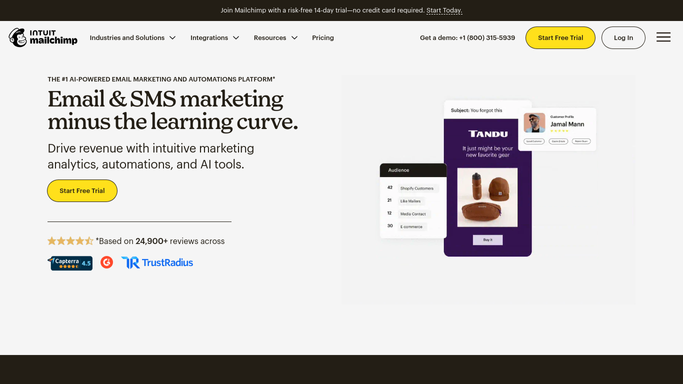
Mailchimp - draft a last-minute promo email
mailchimp.com How to Automate Mailchimp
WebRun opens Mailchimp to draft a last-minute promo email. - Open Mailchimp and create a new draft campaign for the last-minute promo list
- Write a short, punchy subject line and body highlighting the available rooms and times
- Include a direct booking link for each open slot
- Save the campaign as a draft without scheduling or sending it
Done when A last-minute promo draft is saved in Mailchimp ready for review.
-
3
Slack - post draft for approval
slack.com How to Automate Slack
WebRun opens Slack to post draft for approval. - Post a summary of the empty slots and the draft campaign link to the marketing channel
- Note the rooms, times, and remaining capacity so the reviewer can verify accuracy
- Prompt staff to approve or adjust the draft before scheduling the send
Done when The team has a Slack notification with the draft promo ready for approval.


How do I automatically fill empty escape room time slots with last-minute promotions?
WebRun checks Bookeo every morning for time slots with low or zero bookings in the next 48 hours, drafts a targeted last-minute promo email in Mailchimp, and posts the draft to Slack for staff review. No email is sent until your team approves it, turning empty slots into revenue without guesswork.
- Empty slots get a targeted promo drafted automatically every morning
- Staff approve all promos before any email reaches guests
- Revenue from off-peak slots increases without manual checking
Built for escape room owners · venue managers · marketing managers · entertainment venue operators
How is each run configured?
Secure by default
Connect once, stays signed in
WebRun signs in once and keeps each session in a persistent environment, so every run picks up right where it left off.
Every action is checked against this policy before it runs.
Questions, answered
Will it send the promo email automatically?
No. WebRun saves the promo as a Mailchimp draft and posts a summary to Slack for your team to review. No email is scheduled or sent until a staff member approves it, keeping every outbound message under your control.
How does it decide which slots to promote?
WebRun checks Bookeo each morning for time slots in the next 48 hours with zero or low bookings relative to room capacity. Only genuinely underbooked slots are included in the promo draft.
Can it target a specific subscriber segment in Mailchimp?
Yes. During setup you specify which Mailchimp audience or segment to target, such as past guests or members who opted in to last-minute deals, so the promo reaches the most relevant people.
Related templates
Put this on autopilot.
Turn it on in minutes - or have our team set it up for you.